Kiroku Tutorials And Flows
This guide teaches Kiroku by workflow. It is written for someone trying to understand how the product behaves in real use, not just where buttons are located.
Use this with the Feature Tour and User Guide:
- Feature Tour: product map and feature list.
- User Guide: control-by-control reference.
- Tutorials And Flows: how the parts work together.
For implementation terminology, see Queue Product Model. The short version is: Queue is the canonical user-facing concept, queue items are global while unscheduled, and scheduling places an item into the currently selected workspace.
The Mental Model
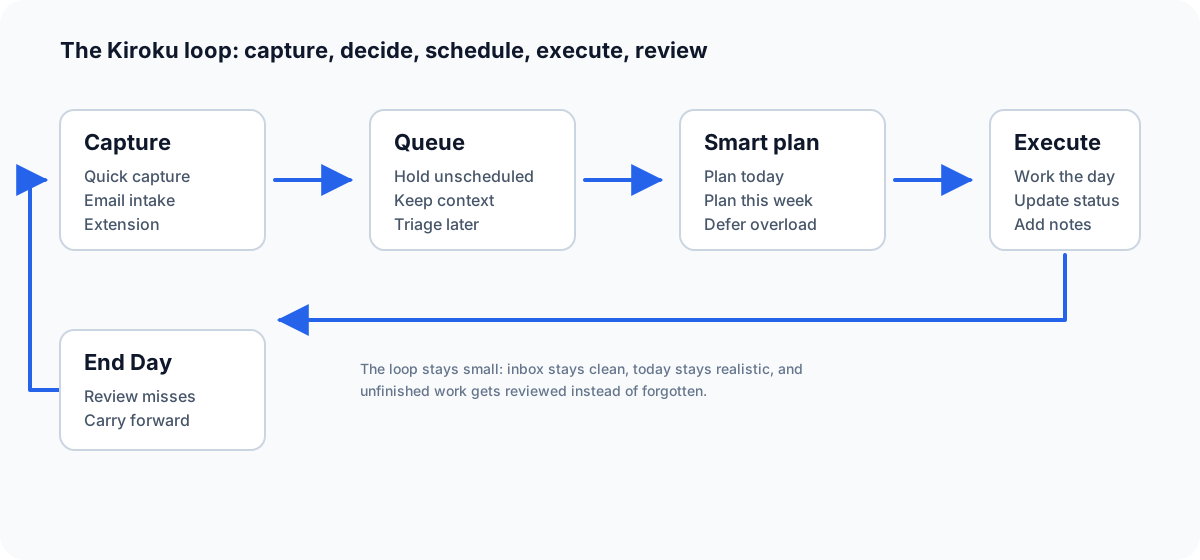
Kiroku has five core states:
| State | Meaning | User question |
|---|---|---|
| Capture | Something arrived, but you have not decided when it belongs. | "What is this?" |
| Queue | The item is real, but not scheduled. | "Should I do it today, this week, later, or delete it?" |
| Schedule | The item has a day and time. | "When am I doing this?" |
| Execute | The day is being worked. | "What is next?" |
| Review | The day is closed and unfinished work is handled. | "What carries forward?" |
Most productivity tools stop at capture or calendar. Kiroku joins both. The queue catches raw work, smart scheduling proposes safe slots, and Daily Workflow prevents missed work from vanishing.
Tutorial 1: Plan A Real Week From A Blank Planner
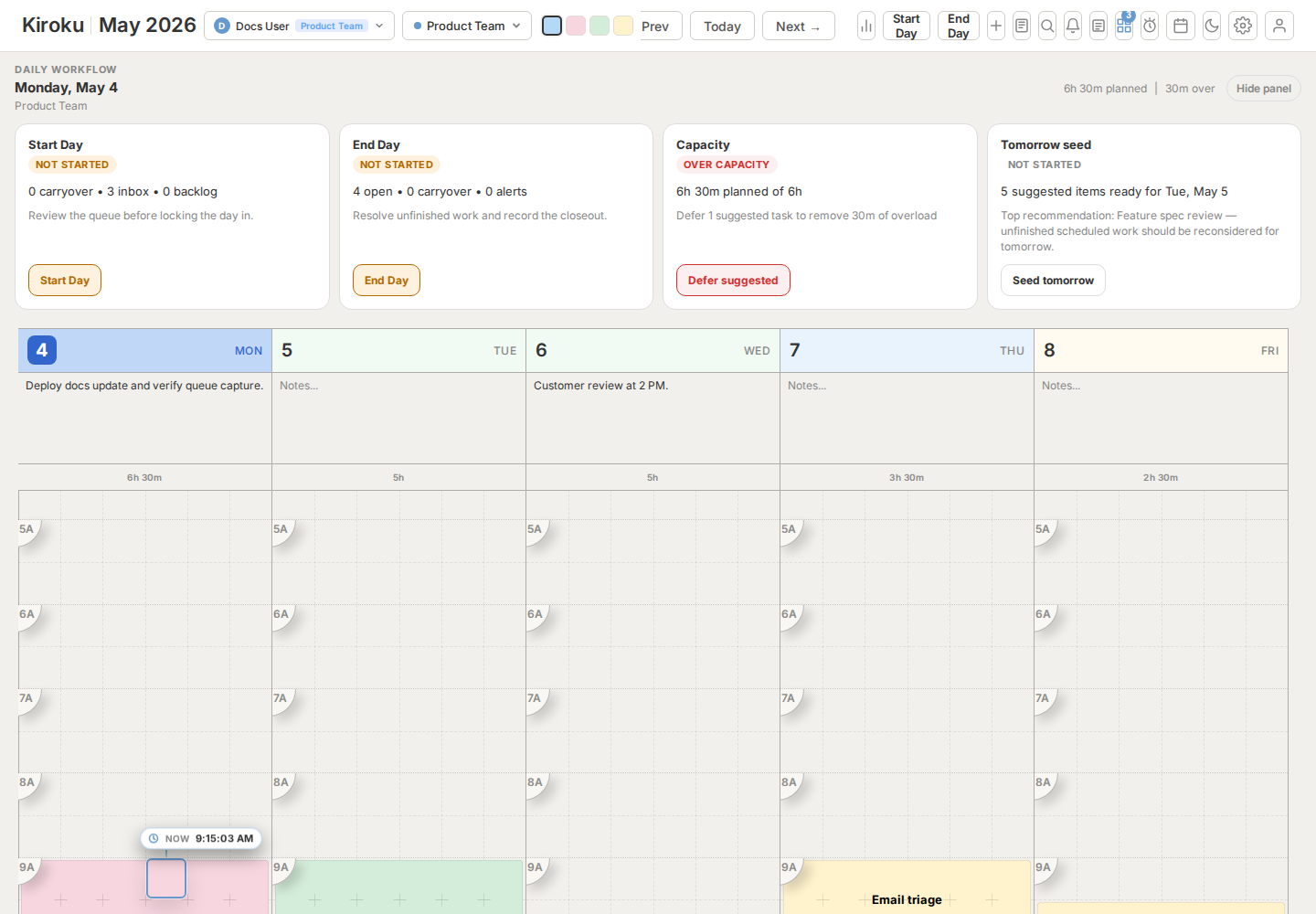
Goal: build a week that is realistic, visible, and easy to adjust.
Step 1: Choose The Shape Of The Week
Open Settings > Days.
Decide:
| Setting | Recommendation |
|---|---|
| Visible days | Use Weekdays for work planning, All for personal planning. |
| Visible hours | Hide hours you never schedule. This makes smart scheduling better. |
| Daily capacity | Set the number of hours you can realistically commit. |
| Notes and total time | Keep both on while learning the app. |
Why this matters: smart scheduling only searches visible days and visible hours. If you hide weekends, Plan this week will not place work there.
Step 2: Add Fixed Commitments First
Create blocks for meetings, appointments, school pickup, workouts, or hard deadlines.
Use fixed commitments for anything with a real time. Kiroku treats those blocks as occupied when suggesting queue slots.
Step 3: Add Flexible Work To The Queue
Open the queue and add items like:
- Write launch checklist.
- Review contract.
- Prepare Q3 plan.
- Process receipts.
- Follow up with customer.
Do not schedule everything manually yet. Let the queue hold items until the fixed commitments are visible.
Step 4: Use Smart Scheduling
Open the queue.
For each item:
| Button | Use when |
|---|---|
| Plan today | You want it on the selected day and there is room. |
| Plan this week | Any visible day this week is acceptable. |
| Pick time | The suggested slot is wrong or the item needs a specific day. |
| Make alert | It is a reminder, not a work block. |
| Delete | It is noise. |
Expected result: the item disappears from the queue only after it becomes a real task on a visible day.
Step 5: Read The Daily Workflow Strip
The daily workflow strip shows whether the selected day is within capacity. If it says the day is over capacity, do not ignore it. Use Start Day or End Day to defer work instead of manually hunting through the grid.
Tutorial 2: Understand Smart Scheduling
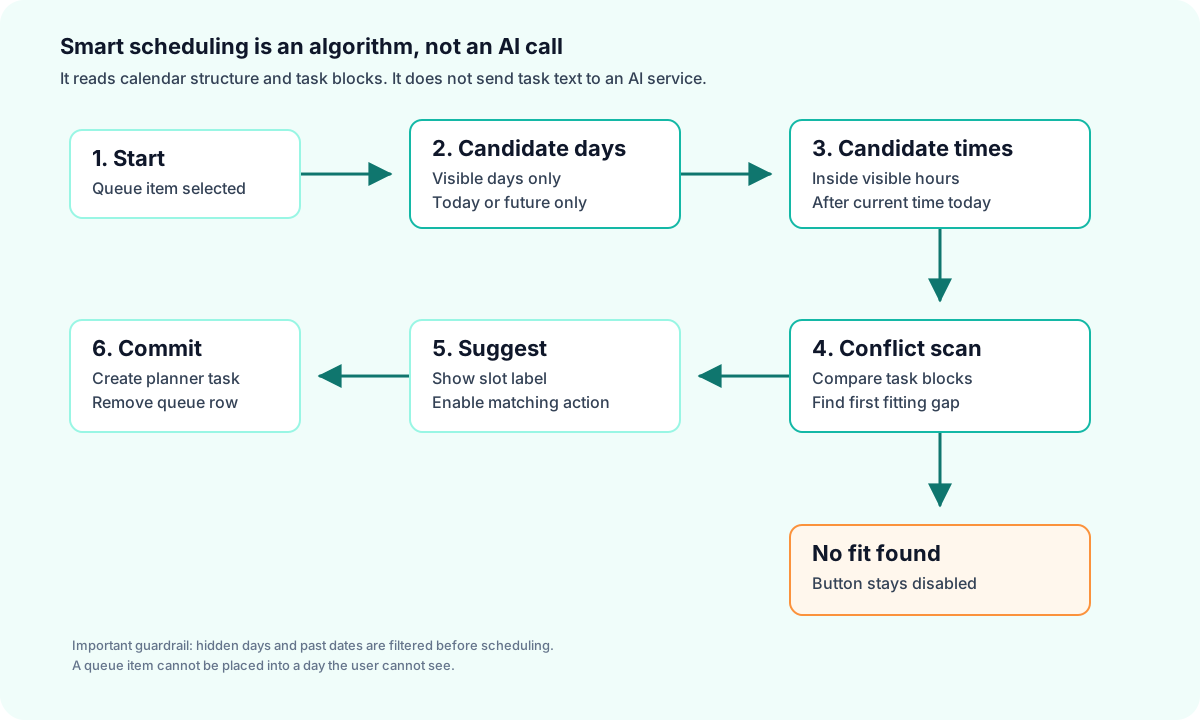
Smart scheduling does not call AI. It does not classify your task text. It does not send private calendar content to a model.
It is a deterministic slot-finding algorithm.
Inputs
| Input | Why it matters |
|---|---|
| Visible days | Hidden days are never candidates. |
| Visible hours | Suggestions stay inside the usable grid. |
| Existing tasks | Suggestions avoid occupied time. |
| Current time | Plan today will not suggest a time earlier than now. |
| Daily capacity | Daily Workflow can warn when the day is overloaded. |
| Lookahead days | Controls how far Plan this week searches. |
Plan Today Flow
Queue item selected
  -> Is smart scheduling enabled?
  -> Is queue slot hinting enabled?
  -> Is selected day visible?
  -> Is selected day today or later?
  -> Search open slots inside visible hours
  -> If a slot fits, enable Plan today
  -> If no slot fits, disable Plan today
Plan This Week Flow
Queue item selected
  -> Build candidate days from the displayed week
  -> Remove hidden days
  -> Remove past days
  -> For today, remove time before now
  -> Search each day for the first fitting slot
  -> Show the first usable suggestion
Example
Assume today is Saturday and your visible days are Monday through Friday.
| Old bad behavior | Correct behavior |
|---|---|
| Search from Monday and schedule into a past hidden day. | No visible future day remains in this week, so Plan this week is disabled. |
That is why the queue item should stay in the queue instead of disappearing.
Smart Scheduling Settings
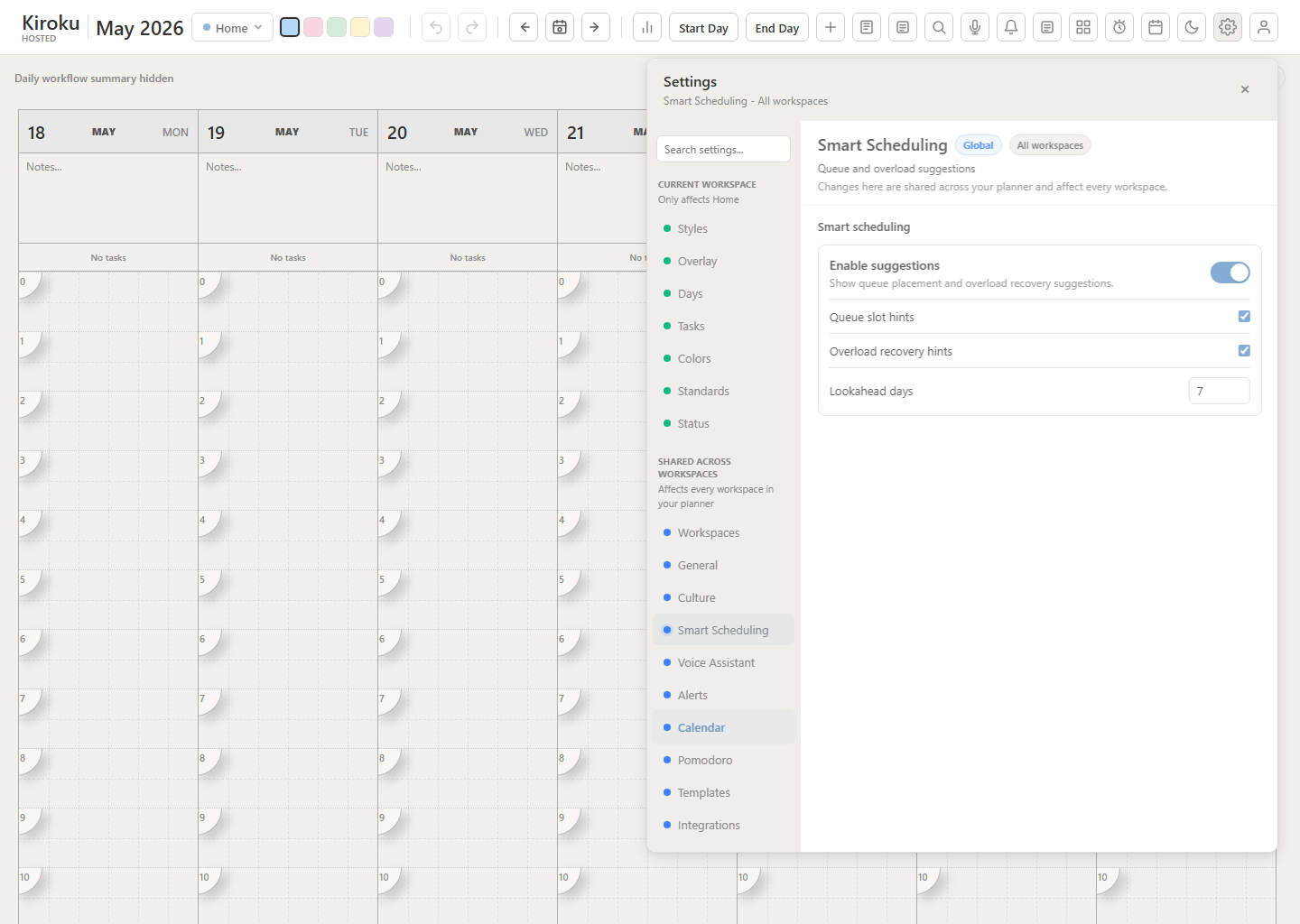
Open Settings > Smart Scheduling.
| Control | What happens when off |
|---|---|
| Enable suggestions | Queue and workflow suggestions disappear. |
| Queue slot hints | Plan today and Plan this week stop suggesting slots. |
| Overload recovery hints | Daily Workflow stops suggesting deferrals. |
| Lookahead days | Not used while suggestions are off. |
Troubleshooting
| Symptom | Likely cause | Fix |
|---|---|---|
| Plan today is disabled | Selected day is full, hidden, or in the past. | Select a visible future day or free time. |
| Plan this week is disabled | No visible future slot exists in the current week. | Move to next week or increase visible days/hours. |
| Suggestion is later than expected | Earlier gaps are too short or outside visible hours. | Increase visible hours or use Pick time. |
| Daily Workflow says overloaded | Scheduled time exceeds daily capacity. | Defer suggested work or raise capacity. |
Tutorial 3: Capture Work Without Opening The Planner
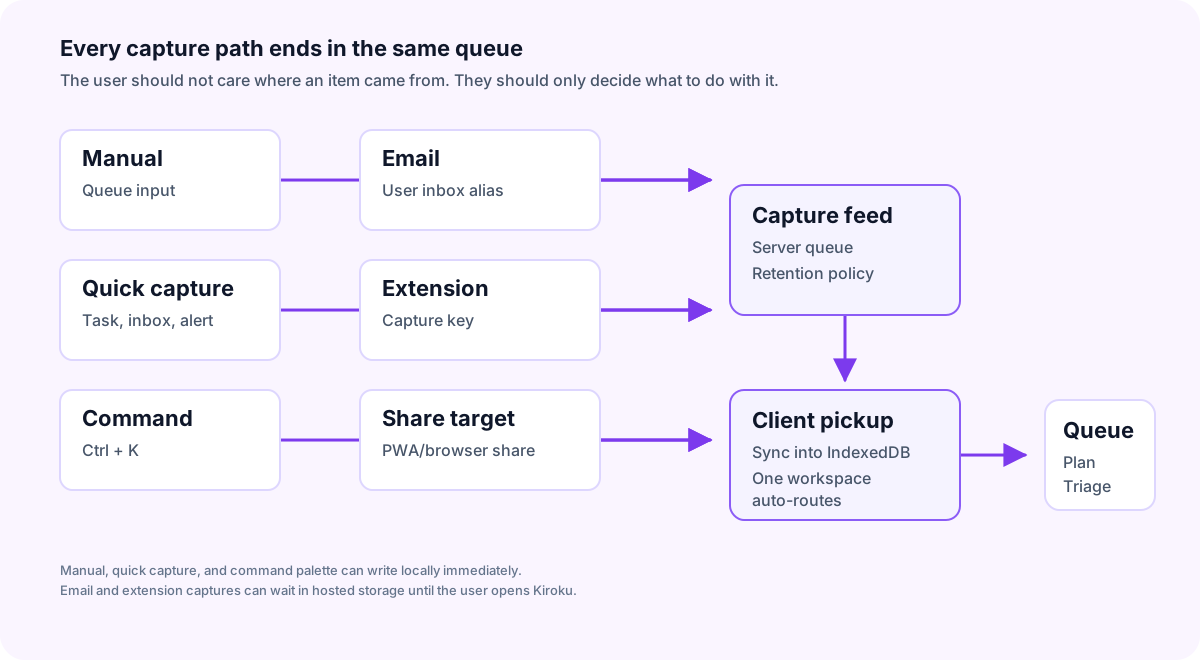
Kiroku supports multiple intake routes, but they all converge into the queue. That is the important part: no matter how an item arrives, you triage it the same way.
Capture Routes
| Route | Best for | Destination |
|---|---|---|
| Queue input | Manual to-dos while the planner is open. | Local queue |
| Quick Capture | Fast note, task, alert, or journal entry. | Local queue or schedule |
| Command Palette | Keyboard-first task creation. | Queue or schedule |
| Email intake | Forwarding real messages. | Hosted capture feed, then queue |
| Browser extension | Capturing pages, selected text, links, screenshots. | Hosted capture feed, then queue |
| Bookmarklet | Fallback when extension install is blocked. | Hosted capture feed, then queue |
| Share Target | Browser/PWA sharing where supported. | Queue |
Quick Capture
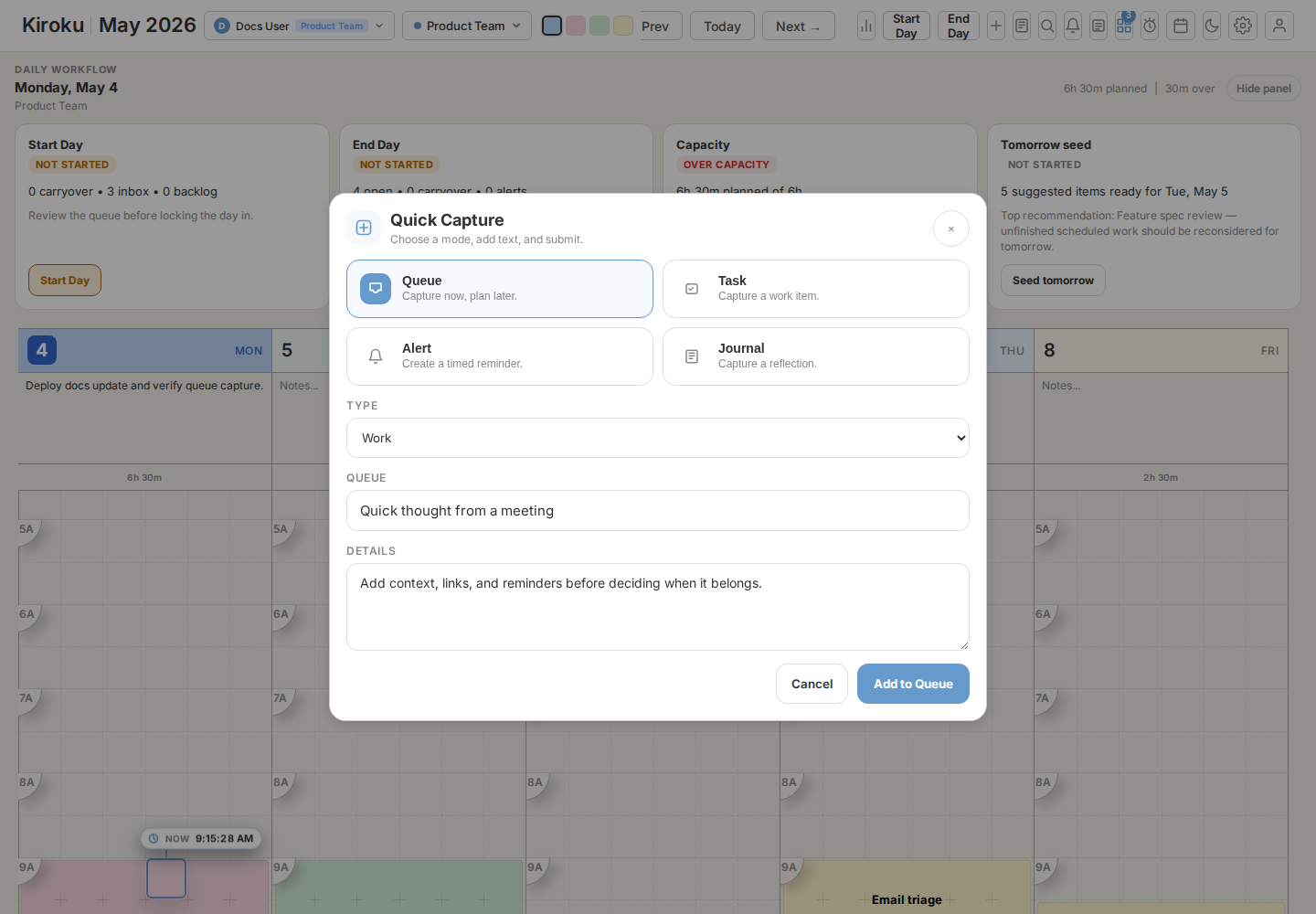
Use Quick Capture when you are already in Kiroku and need to record something quickly.
Flow:
Click capture
  -> Choose queue item, task, alert, or journal
  -> Enter title
  -> Add details if needed
  -> Submit
  -> Item lands in queue or schedule
Use details for context you do not want to lose. When the item becomes a task, those details become task notes.
Email Intake
Open Settings > Integrations and copy the user's inbound capture email address.
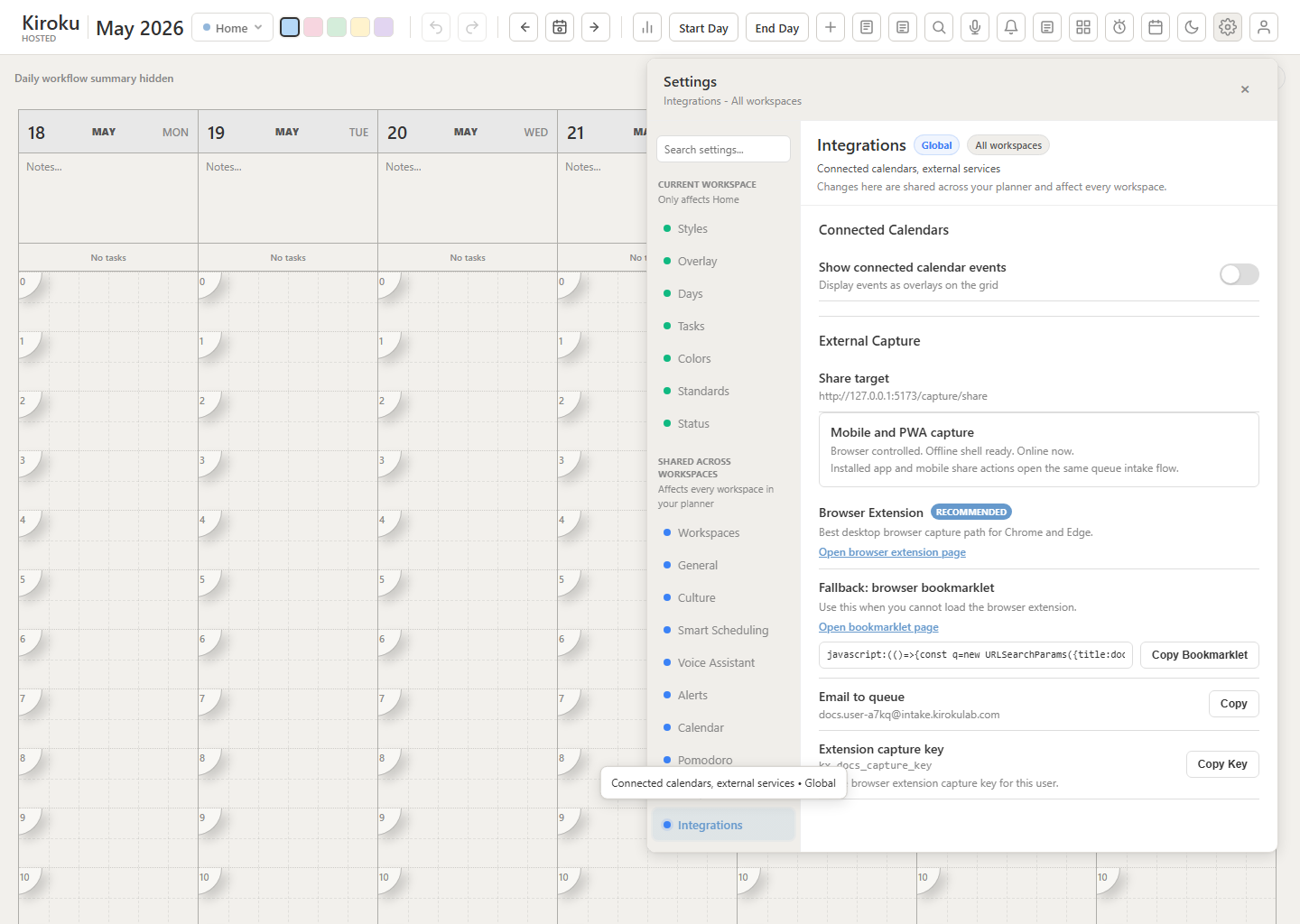
Flow:
Forward email to inbound capture address
  -> Inbound mail provider posts to Kiroku
  -> Kiroku resolves the alias to a user
  -> Message is stored in hosted capture feed
  -> Client opens or syncs
  -> Message appears in queue
Routing rule:
| Workspace count | Behavior |
|---|---|
| Any workspace count | Capture creates a global queue item until the user schedules it. |
Retention rule: if the user does not open the app for days, hosted capture items wait until the admin-configured retention window expires.
For Postmark inbound, point the webhook at https://app.kirokulab.com/api/capture/postmark. Postmark webhook auth should use Basic Auth: any username, and a password matching the production webhook secret configured in Kiroku.
Browser Extension
Use the extension when the useful object is a web page.
It can capture:
- Page title.
- URL.
- Selected text.
- Screenshot.
- Source metadata.
Use the browser extension page for Chrome and Edge setup. Settings > Integrations shows the
user-specific extension capture key.
The extension does not need a workspace selector. Captures go to the global queue and are triaged in Kiroku. If the browser retries the same capture, Kiroku treats the duplicate idempotency key as an already accepted capture instead of creating another queue item.
Bookmarklet
Use the bookmarklet when browser policy blocks extensions.
Use the bookmarklet page for browser-specific setup. Settings > Integrations shows the
bookmarklet generated for the current Kiroku environment.
The bookmarklet is less capable than the extension, but it is easy to deploy.
Tutorial 4: Run Start Day
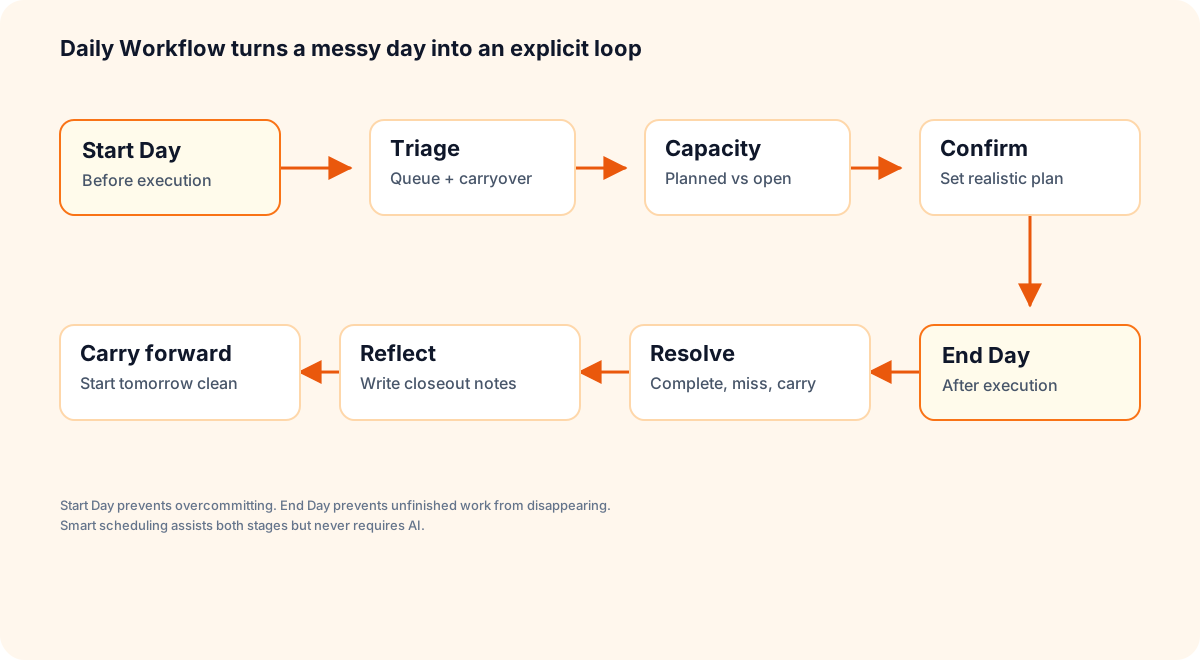
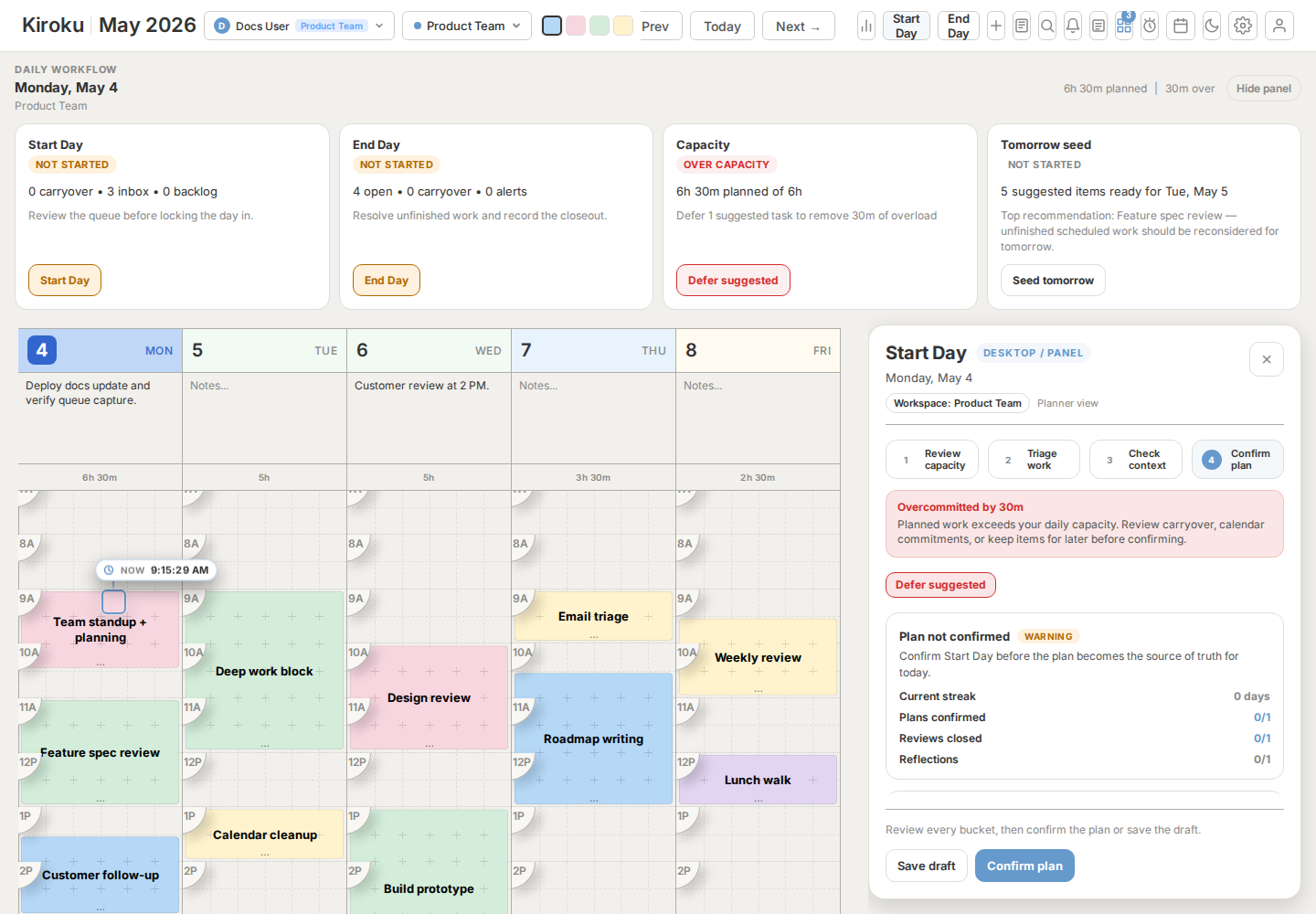
Start Day is for deciding what today is allowed to become.
When To Use It
Use Start Day:
- First thing in the morning.
- Before a deep work block.
- After a weekend or missed day.
- When the queue has grown.
- When the calendar looks full but you are not sure why.
What Each Stage Means
| Stage | What to look for | Action |
|---|---|---|
| Carryover | Work left unfinished from prior days. | Schedule, defer, or delete. |
| Queue | Captured and unscheduled work waiting for a decision. | Plan today, plan this week, keep queued, or delete. |
| Capacity | Planned time vs available capacity. | Defer if overloaded. |
| Confirm | The final shape of the day. | Start execution. |
Recommended Start Day Routine
- Open Start Day.
- Look at carryover first.
- Delete anything that no longer matters.
- Use smart suggestions for queue items that belong today.
- Watch capacity.
- If over capacity, defer suggested work.
- Confirm the day.
What Not To Do
Do not drag everything manually while ignoring the queue. That skips the most useful part of Kiroku: clear decisions about work before it becomes a task block.
Tutorial 5: Run End Day
End Day closes the loop.
Flow:
Open End Day
  -> Review open work
  -> Mark completed work
  -> Carry unfinished work forward
  -> Convert unresolved work back to queue if timing is unknown
  -> Write reflection
  -> Finish session
What To Carry Forward
Carry forward an item when:
- It is still important.
- It has a likely next-day slot.
- It should remain visible as planned work.
Move back to queue when:
- You do not know when it belongs.
- It needs more information.
- It should not consume tomorrow's capacity yet.
Delete when:
- It is obsolete.
- It was noise.
- It belongs in another system.
Tutorial 6: Use The Queue As The Source Of Truth
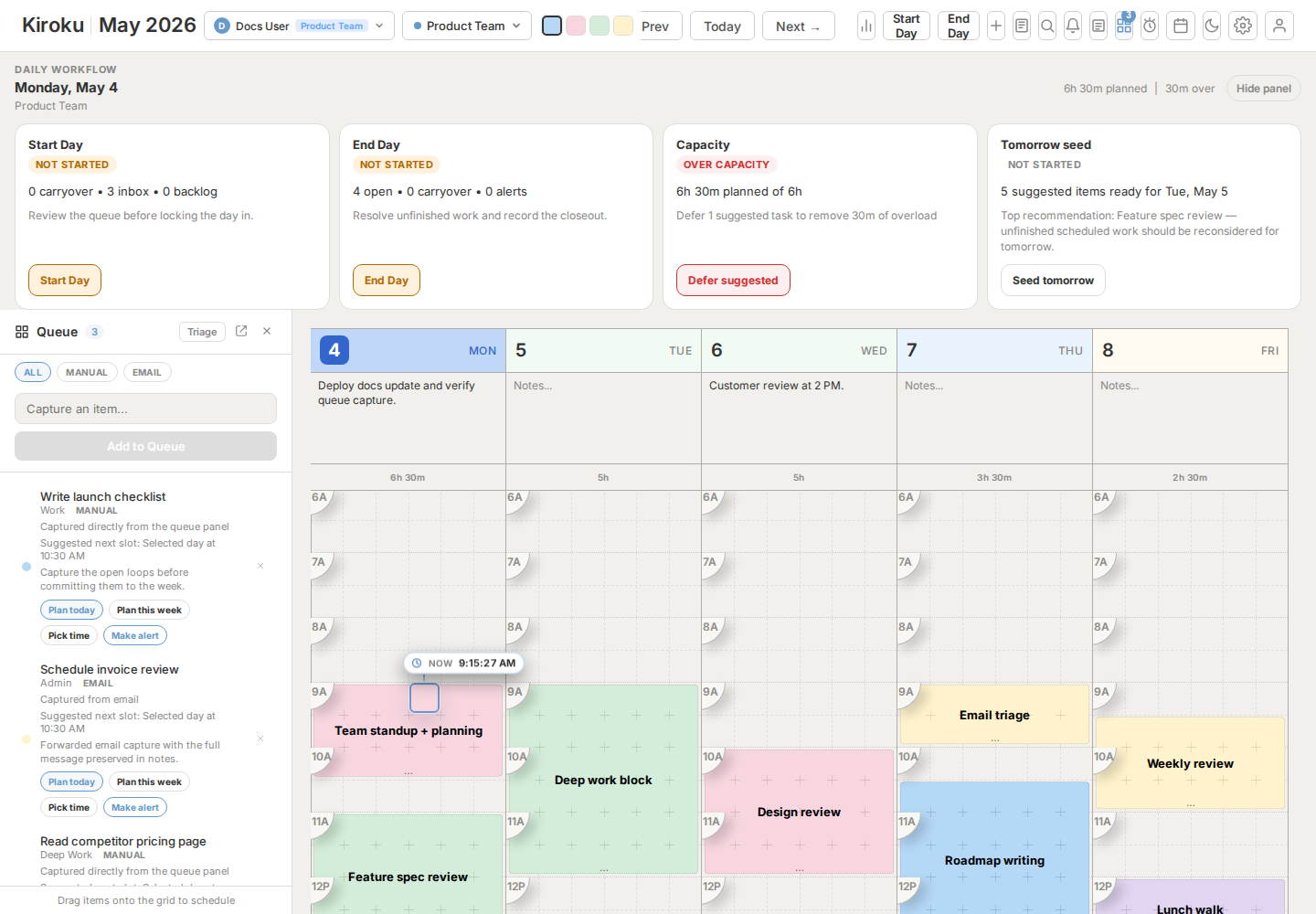
The queue is not a junk drawer. It is the staging area for work that has not earned a place on the calendar.
Queue Item Anatomy
| Part | Meaning |
|---|---|
| Title | The thing to decide or do. |
| Type | Work, admin, personal, or custom category. |
| Source | Manual, email, extension, command palette, workflow, etc. |
| Notes | Full context, forwarded body, selected text, screenshots, or details. |
| Suggestion | Smart scheduling's next safe slot. |
| Actions | Plan, pick time, alert, delete. |
Triage Decision Tree
Does this still matter?
  -> No: delete it.
  -> Yes: does it need a real time?
       -> Yes: Pick time.
       -> No: can it fit today?
            -> Yes: Plan today.
            -> No: can it fit this visible week?
                 -> Yes: Plan this week.
                 -> No: leave queued or defer.
Practical Rule
If the item is not actionable, rewrite it before scheduling it.
Weak item:
Vendor
Strong item:
Email vendor about renewal price increase
Smart scheduling can place time, but it cannot make vague work clear.
Tutorial 7: Use Command Palette For Keyboard Planning
Open Ctrl + K and type a natural phrase.
Examples:
| Input | Result |
|---|---|
Invoice review 3pm today for 30m #admin | Scheduled task today. |
Call Sarah tomorrow 10am #work | Scheduled task tomorrow. |
Research CRM options | Queue item because no time is supplied. |
alert pick up package 5pm | Alert block. |
How to think about it:
Text with time -> scheduled task
Text without time -> queue item
Text with #type -> matching task type
Alert command -> alert
Use command palette for fast entry. Use the queue when you need to triage many items visually.
Tutorial 8: Review Time And Calendar History
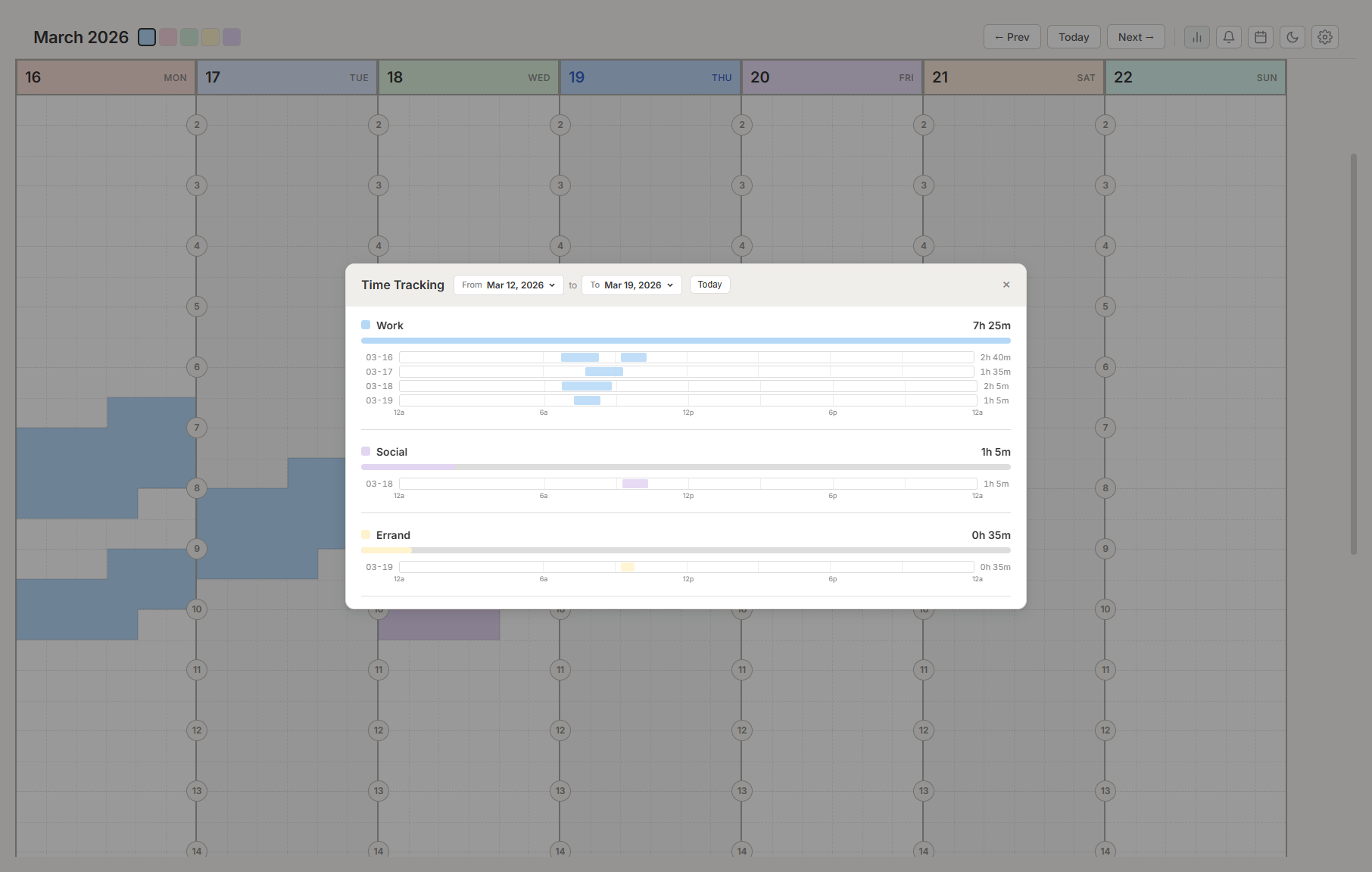
Time Tracking answers "what did I spend time on?"
Use it weekly to review:
- Total scheduled time.
- Breakdown by task type.
- Daily workload shape.
- Overcommit patterns.
- Whether your planned week matches reality.
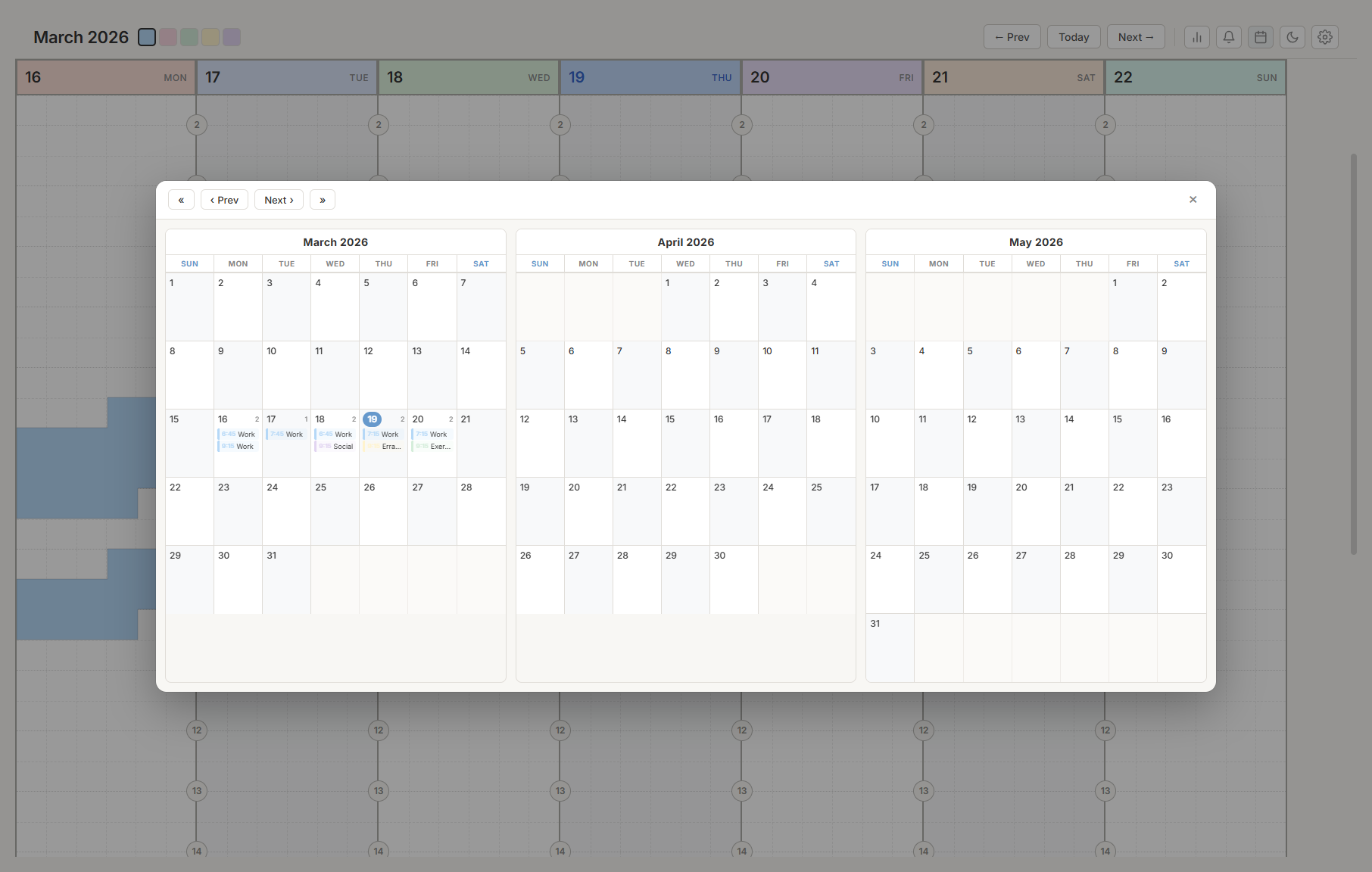
Calendar View answers "where is everything over the month?"
Use it to:
- Jump to a date.
- Review month density.
- Spot holiday collisions.
- Inspect weeks without scrolling.
Tutorial 9: Configure A Workspace For A Real Role
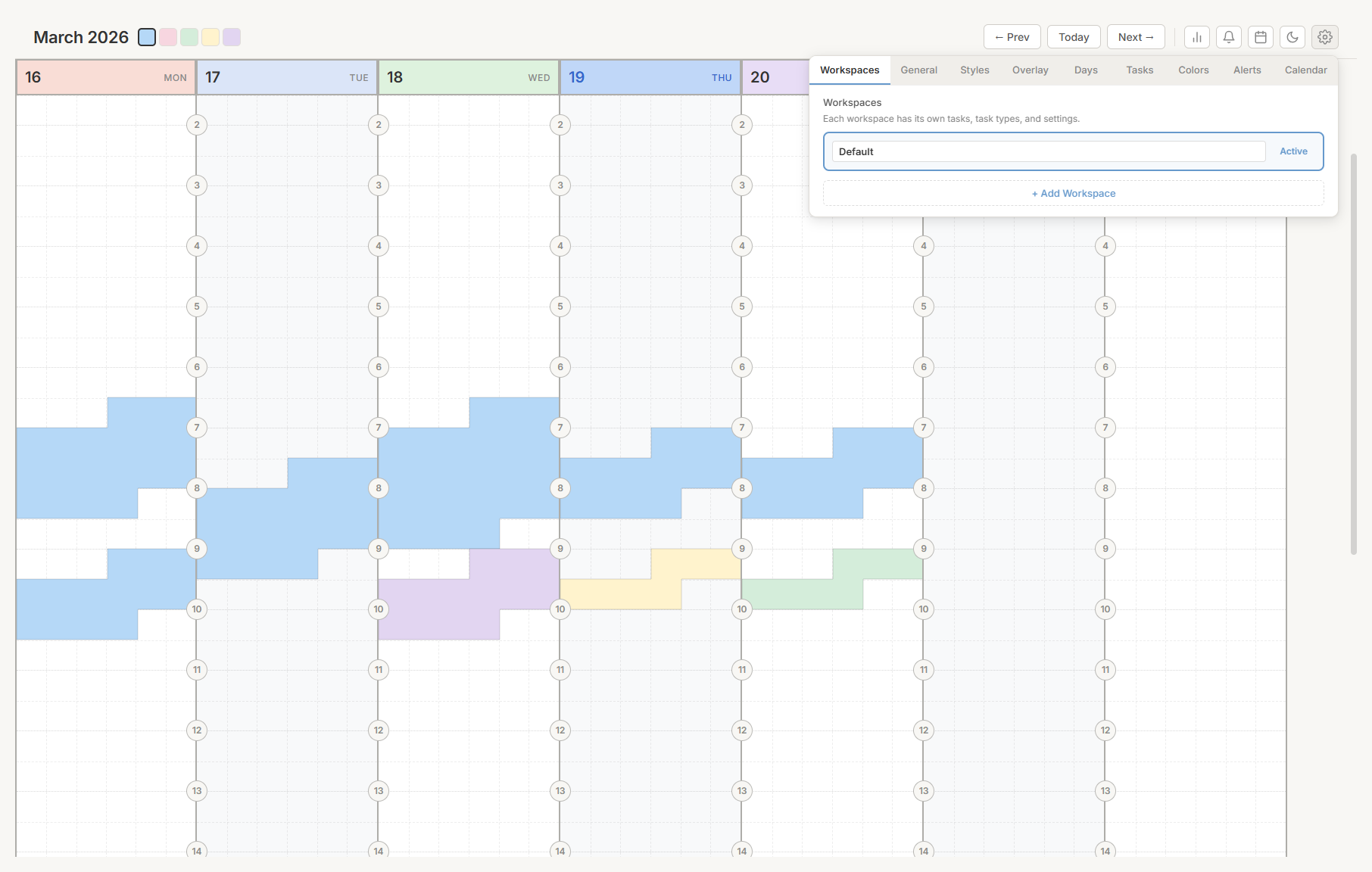
Workspaces are independent planning contexts. Use them when different work should not share task types, colors, templates, or day settings.
Example: Product Manager Workspace
| Setting | Choice |
|---|---|
| Visible days | Monday through Friday |
| Visible hours | 7 AM through 6 PM |
| Daily capacity | 6 hours |
| Task types | Meetings, Deep Work, Admin, Customer, Personal |
| Status preset | Agile or Workflow |
| Smart scheduling | On |
| Queue slot hints | On |
| Overload recovery | On |
Example: Personal Workspace
| Setting | Choice |
|---|---|
| Visible days | All days |
| Visible hours | 6 AM through 10 PM |
| Daily capacity | 4 hours |
| Task types | Family, Health, Errands, Projects, Social |
| Status preset | Personal |
| Smart scheduling | Optional |
Workspace Rule
If a category needs a different calendar shape, make it a workspace. If it only needs a different color, make it a task type.
Tutorial 10: Configure External Capture For Hosted Kiroku
External capture is made of three layers:
| Layer | Purpose |
|---|---|
| Alias or key | Identifies the user. |
| Hosted capture API | Stores the item while the client is offline. |
| Client pickup | Moves the item into IndexedDB and the queue. |
Email Intake Checklist
- Configure the inbound email domain, such as
intake.example.com. - Configure the mail provider inbound webhook to post to
https://app.kirokulab.com/api/capture/postmark. - In Postmark, use Basic Auth with any username and the Kiroku webhook secret as the password.
- Make sure each user has a generated inbound capture alias.
- Open Settings > Integrations.
- Copy the inbound capture email address.
- Forward a test message.
- Open Queue.
- Confirm the message appears with source Email.
- Open task details after scheduling and confirm the full body appears in notes.
Extension Capture Checklist
- Open the browser extension page.
- Install or load the Chrome/Edge package.
- Open Settings > Integrations.
- Copy the Extension capture key.
- Paste the key into extension options.
- Capture a page.
- Confirm the extension popup closes after the capture is accepted.
- Open Kiroku Queue.
- Confirm title, URL, selected text, and screenshot.
- Schedule the item and open task notes.
Debugging Checklist
| Problem | Check |
|---|---|
| Email never appears | Mail provider logs, inbound domain DNS, webhook URL, API response. |
| API returns 405 | You are using GET in a browser; inbound webhook must POST. |
| Capture appears server-side but not in app | Client has not picked up capture feed yet or user/workspace routing is wrong. |
| Extension capture fails | Capture key missing or invalid. |
| Duplicate capture idempotencyKey | The same extension capture was already accepted; reload the current extension package if the popup does not close after acceptance. |
| Screenshot broken | Confirm image payload is stored and note renderer can load it. |
Tutorial 11: Understand Sync And Offline Behavior
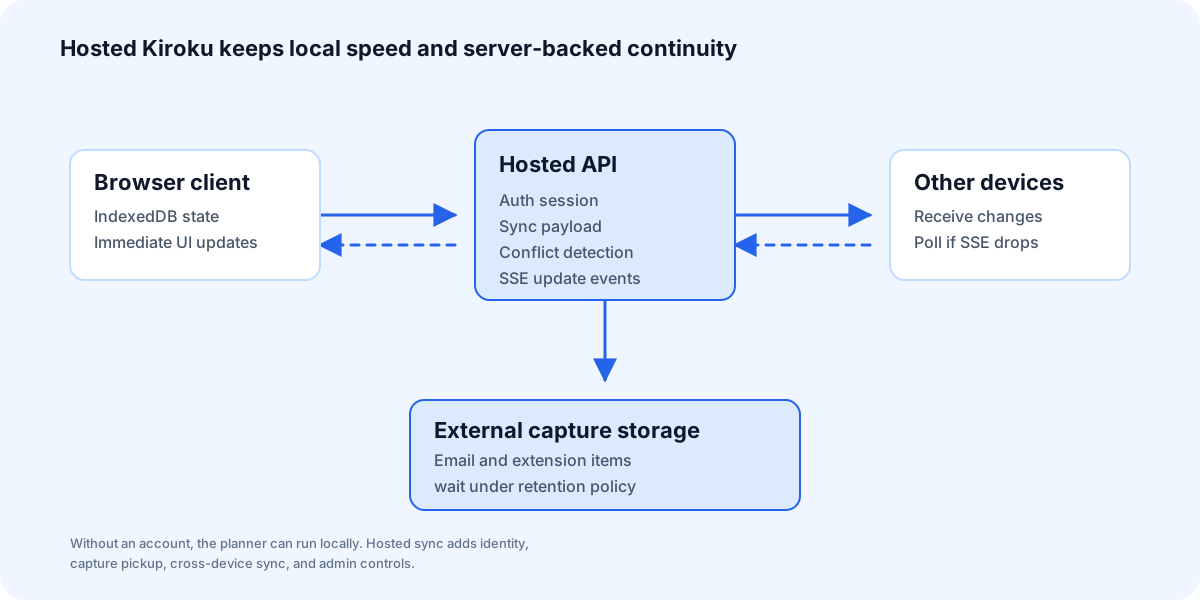
Kiroku keeps the UI responsive by writing locally first. Hosted sync then moves state between devices and server APIs.
Local First
In the planner, changes feel immediate because the browser writes to IndexedDB. This includes tasks, notes, global queue items, settings, workspaces, and journal entries.
Hosted Sync
When authenticated, the app syncs planner state to the hosted backend.
Sync handles:
- Uploading local planner state.
- Downloading server state.
- Server-sent update events.
- Polling fallback.
- Conflict detection.
External Capture Queue
Email and extension captures can arrive while the client is closed. Those items live in hosted capture storage until pickup or expiry.
Admin capture settings determine retention. For example, a 3-day retention policy means a user who does not open the app for more than 3 days may miss old unpicked captures.
Tutorial 12: Admin And Enterprise Boundaries
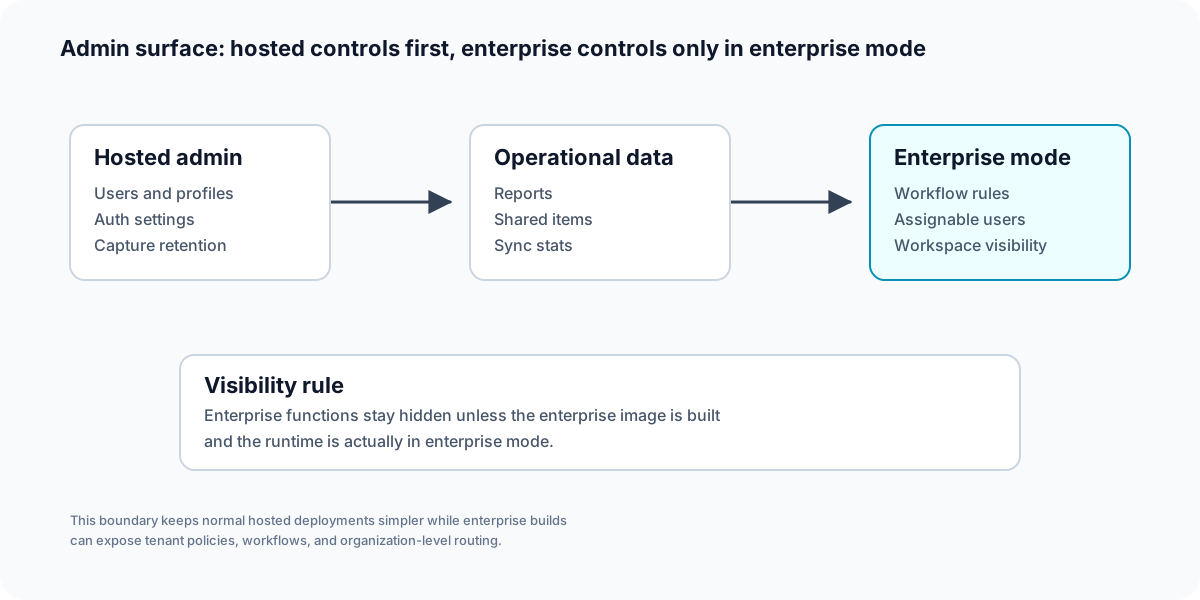
Admin features fall into two groups:
| Group | Examples |
|---|---|
| Hosted admin | Users, profiles, support diagnostics, auth settings, capture retention, reports. |
| Enterprise admin | Workflow rules, assignable users, shared queue, workspace visibility policies. |
Enterprise controls should only appear when:
- The enterprise image is built.
- The runtime is running in enterprise mode.
- The user's feature flags permit the function.
This keeps the regular hosted app simpler and prevents enterprise-only actions from appearing in the wrong deployment.
Feature Recipes
Recipe: Clear A Busy Queue In Ten Minutes
- Open Queue.
- Filter to Email.
- Delete obsolete messages.
- Use Plan today for urgent messages.
- Use Plan this week for useful but flexible messages.
- Leave unclear items queued.
- Run Start Day.
Recipe: Recover An Overloaded Day
- Open Start Day.
- Look for an over-capacity warning.
- Review suggested deferrals.
- Click defer suggestion when it matches reality.
- Recheck capacity.
- Confirm the day.
Recipe: Save A Web Page For Later
- Select useful text on the page.
- Click the Kiroku extension.
- Include screenshot if the visual state matters.
- Capture.
- Later, open Queue.
- Use Plan this week.
- Open task notes to review URL, selection, and screenshot.
Recipe: Try Hosted Kiroku Without An Email (OneCode)
- Open the login page. The OneCode form is the default view.
- Click Don't have one? Create a OneCode.
- A suggested two-word code appears. Click the refresh button until you see one you like.
- Choose a password and click Use [your code].
- Write the code down — there is no recovery — then continue into the planner.
- Sign in later with just the code and password.
- To keep the account past 14 days of inactivity and unlock cloud sync plus the full feature set, open the account panel and use Upgrade to a Full Account with an email and password. Your data carries over.
Recipe: Build A Repeatable Meeting Day
- Create the meeting day once.
- Lock any fixed tasks whose schedule, type, and status should not change.
- Right-click the day header.
- Save as template.
- Apply it to the next matching date.
- Adjust only the variable tasks.
Recipe: Weekly Review
- Open Time Tracking.
- Select this week.
- Review time by task type.
- Open Calendar View.
- Look at next week.
- Add fixed commitments.
- Open Queue.
- Plan high-value items into open slots.
How The Major Features Fit Together
| Feature | Produces | Consumes | Best next action |
|---|---|---|---|
| Quick Capture | Queue item, task, alert, journal note | User input | Triage or schedule |
| Email intake | Queue item with email body | Forwarded email | Plan from queue |
| Browser extension | Queue item with page context | Page URL, selection, screenshot | Plan from queue |
| Queue | Scheduled task or alert | Captured items | Plan, pick time, delete |
| Smart scheduling | Slot suggestion | Tasks, visible hours, visible days | Accept or pick time |
| Start Day | Confirmed day plan | Queue, carryover, capacity | Execute |
| End Day | Reflection, carryover, cleanup | Completed and open tasks | Start tomorrow cleaner |
| Time Tracking | Review data | Scheduled tasks | Adjust capacity or task types |
| Calendar | Month-level view | Scheduled tasks, holidays | Jump to date |
| Workspaces | Separate planning context | Scheduled tasks, settings | Switch context before scheduling queue items |
| Sync | Cross-device state | Local planner state | Keep working |
| Admin | Operational control | Users, profiles, capture feed | Configure environment |
| Day templates | Repeatable task layout | Existing day plan | Apply to another day |
What To Test After Changing These Features
Use this list when verifying changes.
Smart Scheduling
- Queue item shows a suggestion when a visible slot exists.
- Plan today creates a task on the selected visible day.
- Plan this week skips hidden days.
- Plan this week skips past days.
- Full days disable suggestions.
- Turning off Queue slot hints removes planning buttons.
Capture
- Manual queue item persists after reload.
- Email capture appears in queue.
- Extension capture appears in queue.
- Details become task notes after scheduling.
- Images in notes open correctly.
- Extension popup closes after accepted capture.
- Duplicate extension capture keys do not create duplicate queue items.
- Deleting a queue item is permanent.
Tasks And Templates
- Locked task blocks schedule, type, status, and alert/task-mode edits.
- Locked task cannot be moved or resized by drag.
- Saving a day template preserves each task's lock state, status, and planning fields.
- Applying a day template recreates locked tasks as locked and copies estimates, actuals, deadlines, priority, and scheduling constraints.
Daily Workflow
- Start Day opens from toolbar.
- Carryover and queue groups show correct counts.
- Capacity warning appears when over daily capacity.
- Suggested deferral changes the planner.
- End Day can carry unresolved work forward.
Sync
- Local changes persist in IndexedDB.
- Authenticated changes upload.
- Second device receives task, queue, template, task type opacity, status/lock, note/image, journal, and planning-field changes.
- External captures wait for pickup.
- Retention removes old unpicked captures.
Admin And Enterprise
- Hosted admin pages load in hosted mode.
- Enterprise-only controls are hidden in non-enterprise mode.
- Enterprise controls appear in enterprise build and enterprise runtime.
- The admin Support page searches by user identity and shows sanitized account, sync, capture alias, and capture-event diagnostics for troubleshooting.
- Capture retention settings affect pickup behavior.
Glossary
| Term | Meaning |
|---|---|
| Queue | Unified global list of unscheduled captured work. |
| Queue item | Captured work that is not scheduled yet. It becomes workspace-specific only after scheduling. |
| Inbox item | Legacy/internal compatibility name for some queue records and migration paths. Do not use as user-facing product language. |
| Backlog item | Legacy/internal compatibility name or optional queue filter for older/lower-priority queue work. Do not use as the core user-facing model. |
| Capture | Any action that creates a queue item, task, alert, or note. |
| Smart scheduling | Deterministic slot suggestions based on visible schedule data. |
| Daily capacity | The realistic amount of time available for planned work. |
| Visible days | Days shown on the planner and eligible for suggestions. |
| Visible hours | Hours shown on the planner and eligible for suggestions. |
| Carryover | Unfinished work from earlier days. |
| Hosted capture feed | Server-side queue for email and extension captures before client pickup. |
| Capture key | Stable user key used by the browser extension. |
| Inbound capture alias | Stable user email address used for email intake. Some internal tables may still call this an inbox alias. |
| OneCode | Privacy-first account type with no personal info, signed in with a generated two-word code plus a password. Restricted profile without sync, 14-day inactivity expiry, no recovery, upgradeable to a full account. |
| Enterprise mode | Runtime mode that enables organization-level controls. |