Kiroku Feature Tour
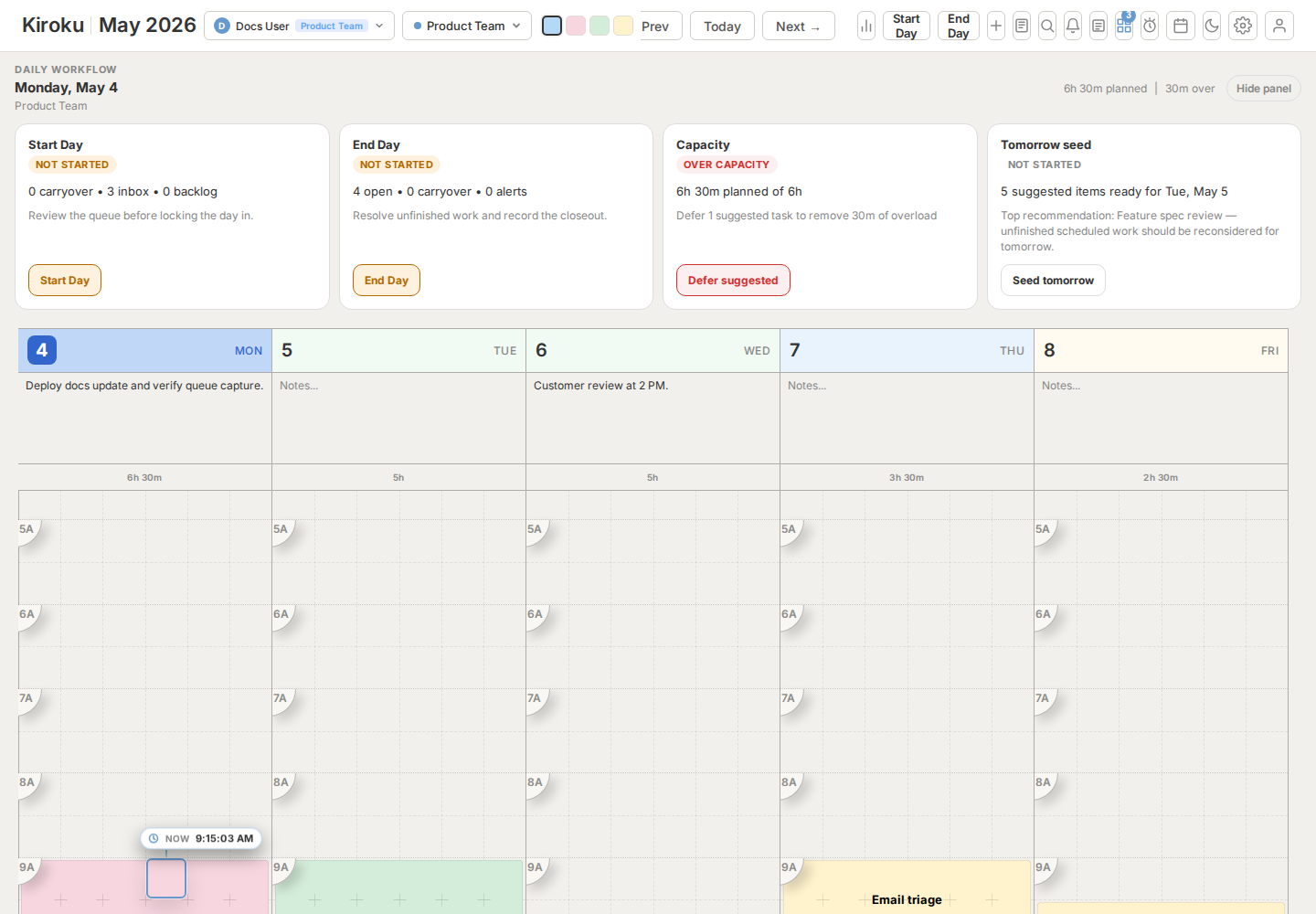
Kiroku is a visual planner built around one idea: everything you capture should become usable without turning your calendar into a second job. The app combines a weekly time grid, a unified queue, deterministic smart scheduling, daily planning rituals, browser and email intake, sync, and configurable workspace settings.
This page is the feature map. Use the Tutorials And Flows guide when you want deeper walkthroughs, diagrams, and end-to-end workflows. Use the User Guide when you need step-by-step detail for a specific control. Developers should also read Queue Product Model before changing capture, queue, workspace, or scheduling behavior.
Feature Map
| Area | What it does | Where to use it |
|---|---|---|
| Visual planner | Draw, move, resize, and edit tasks directly on a week grid. | Main planner |
| Smart scheduling | Suggests usable queue slots and overload recovery without calling AI. | Queue, Daily Workflow, Settings > Smart Scheduling |
| Queue | Holds unscheduled work from manual capture, email, extension, command palette, and workflows. | Queue button |
| Daily workflow | Start Day and End Day rituals for triage, capacity, carryover, and reflection. | Start Day / End Day buttons |
| Quick capture | Adds queue items, tasks, alerts, and journal notes without leaving the planner. | Plus / capture button |
| Email intake | Gives every user a stable inbound capture email address for forwarding messages into Kiroku. | Settings > Integrations |
| Browser capture | Chrome/Edge extension and bookmarklet capture pages, links, selections, and screenshots. | Extension and bookmarklet pages |
| Command palette | Creates tasks or queue items from typed natural language. | Ctrl + K |
| Voice assistant | Captures "Hey Kiro" microphone commands and converts them into whitelisted task changes through the hosted AI command API. | Toolbar microphone |
| Calendar and time tracking | Review plans by month and analyze time by day, type, and range. | Calendar and Time Tracking buttons |
| Workspaces | Separate plans, settings, task types, notes, and imported data. | Settings > Workspaces |
| Customization | Configure visible days, hours, styles, colors, statuses, notifications, templates, and calendars. | Settings |
| Sync and hosted mode | Keeps authenticated users and hosted deployments synchronized. | Account / server runtime |
| OneCode sign-in | Privacy-first accounts with no personal info: a memorable two-word code and password, with a pick-your-code create flow. Upgrade unlocks sync. | Login page (default method) |
| Authenticator app MFA | Adds optional Google Authenticator-compatible sign-in protection with recovery codes and no phone number. | Settings > General / Login |
| Admin and enterprise | Tenant controls, users, capture retention, workflow rules, shared items, and reports. | Admin app in enterprise/hosted builds |
Smart Scheduling
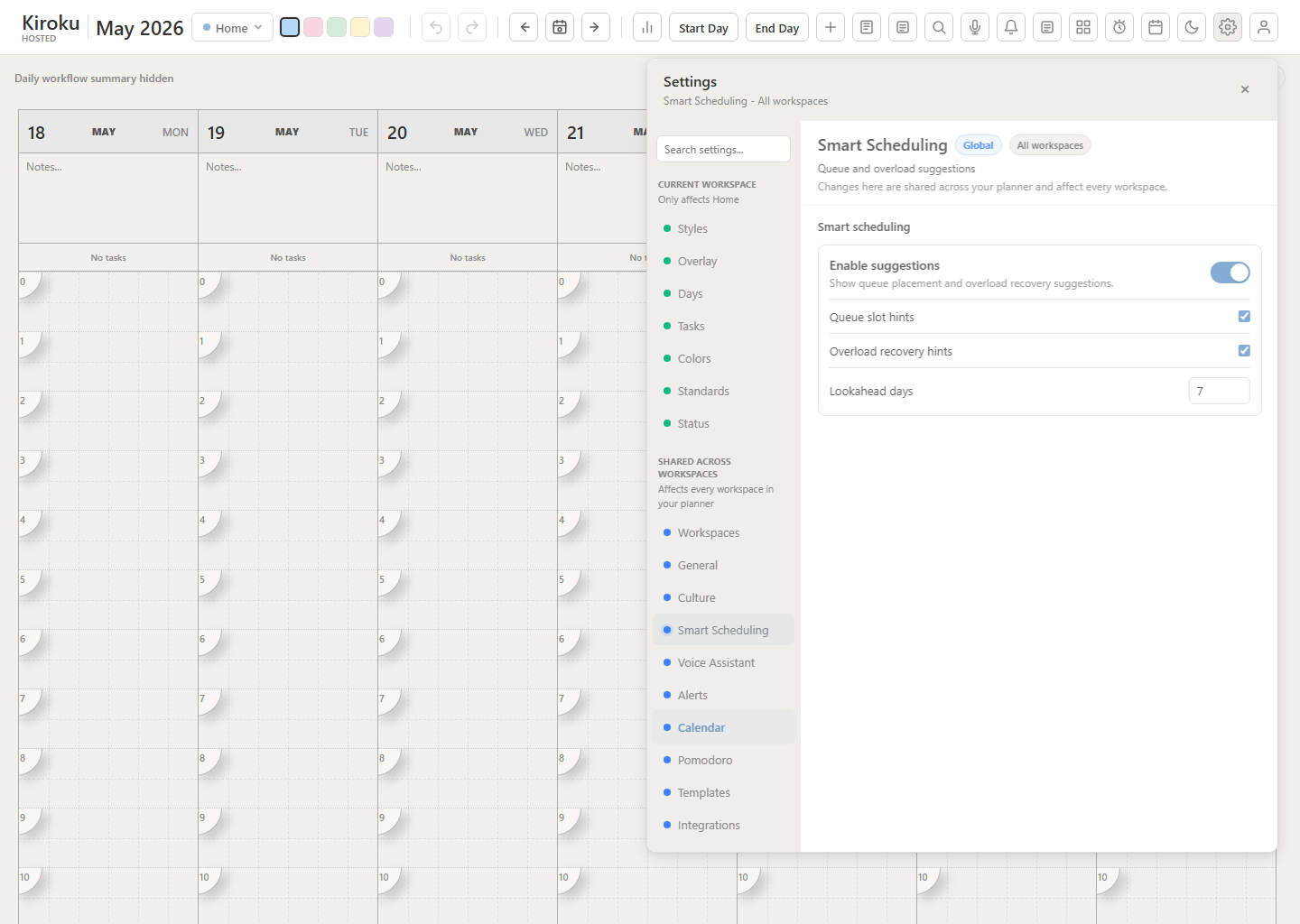
Smart scheduling is intentionally deterministic. It does not call AI and it does not guess based on private content. It uses the schedule data already in the planner:
- Visible days.
- Visible hours.
- Existing task blocks.
- Queue item duration assumptions.
- Daily capacity.
- Current time when planning today.
- Lookahead range.
What The Settings Mean
| Setting | Effect |
|---|---|
| Enable suggestions | Master switch for all smart scheduling assistance. |
| Queue slot hints | Shows "Suggested next slot" and enables Plan today / Plan this week. |
| Overload recovery hints | Shows capacity warnings and defer suggestions in Daily Workflow. |
| Lookahead days | Limits how far ahead the scheduler searches. |
How Plan Today Works
Plan today checks the selected day, then finds the first open slot that fits inside your visible hours. If the selected day is hidden, in the past, or full, the button stays disabled.
How Plan This Week Works
Plan this week scans visible days in the displayed week from today forward. It skips:
- Hidden days.
- Past days.
- Time before the current minute on today.
- Full days.
- Slots outside visible hours.
That means a queue item should never disappear into a hidden Monday, an old day, or a calendar column you cannot see.
How Overload Recovery Works
Daily Workflow compares scheduled time against your daily capacity. If a day is over capacity, Kiroku identifies movable work and suggests deferring it to the next visible day with room. The goal is not to optimize your life for you; it is to make overload visible and give you one clean recovery action.
When To Turn It Off
Turn smart scheduling off if you want the planner to behave like a pure manual calendar. In hosted or enterprise environments, this can also be treated as a paid or policy-controlled feature because the controls are feature-flagged.
The Weekly Planner
The planner is the primary workspace. Days are columns, time runs vertically, and tasks are colored blocks.
Core behaviors:
- Drag on a day to create a task.
- Drag a task to move it.
- Resize from the top or bottom edge.
- Double-click to edit details, status, notes, recurrence, and alerts.
- Use visible-day settings to show every day or only workdays.
- Use visible-hour settings to keep the planner focused on the hours you actually use.
- Use notes under each day for lightweight daily context.
The top toolbar contains workspace selection, task type buttons, navigation, Start Day / End Day controls, quick capture, queue, search, calendar, settings, and account actions.
Queue And Triage
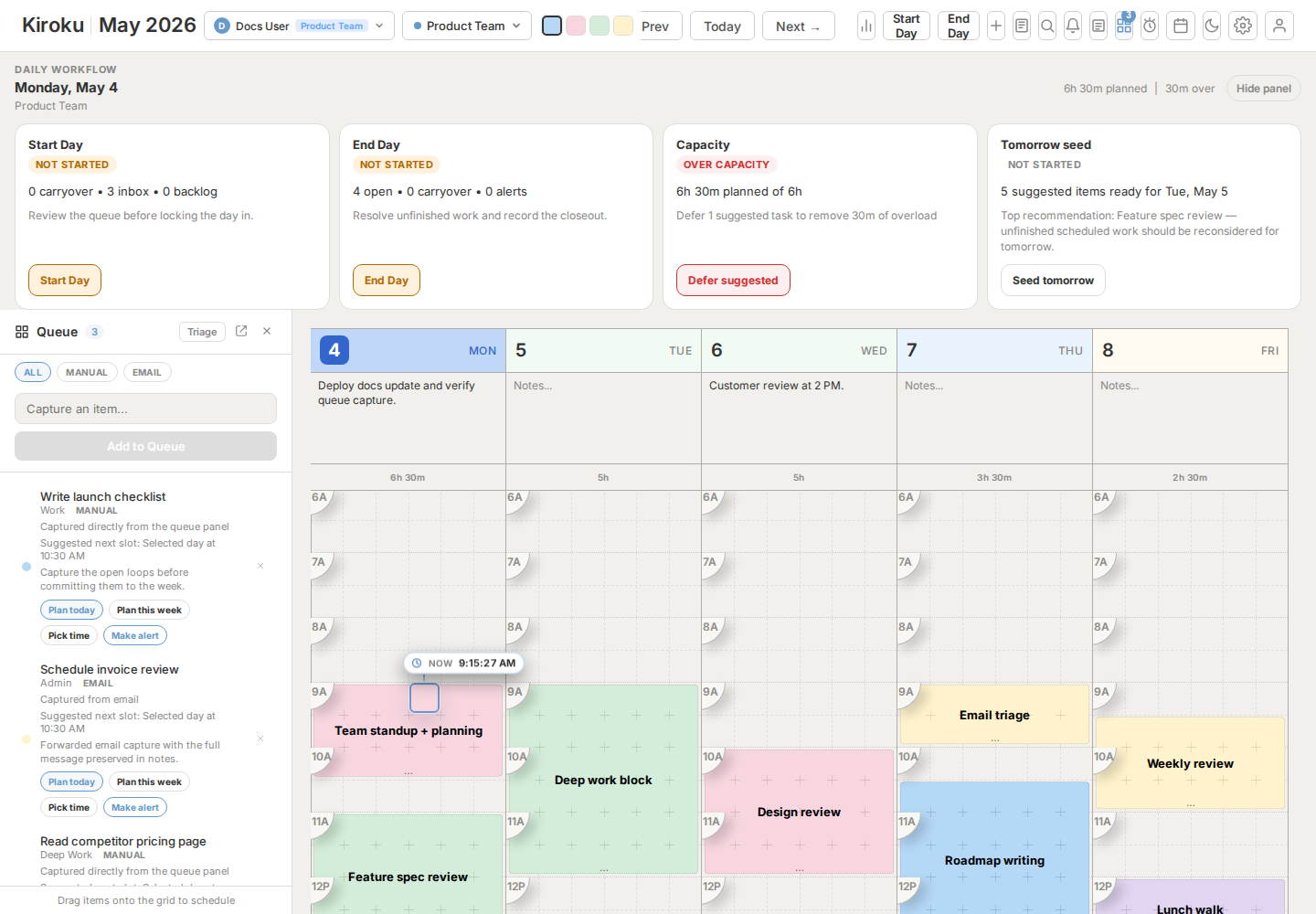
The queue is the canonical place for unscheduled work. It is intentionally unified: manual captures, emails, extension captures, command palette items, and workflow-generated items all land in one global list.
Queue items are global while they are unscheduled. They become part of a workspace only when the user schedules them into the workspace currently selected in the top toolbar.
Queue actions:
| Action | Result |
|---|---|
| Plan today | Converts the queue item into a scheduled task on the selected day. |
| Plan this week | Converts it into the next visible open slot in the displayed week. |
| Pick time | Opens a manual date/time picker. |
| Make alert | Converts the item into a short alert block. |
| Delete | Permanently removes the queue item. |
| Triage | Steps through queue items one at a time. |
Each queue item keeps source context. Email items preserve the message body in notes. Browser captures can include page title, URL, selected text, and screenshot data.
Daily Workflow
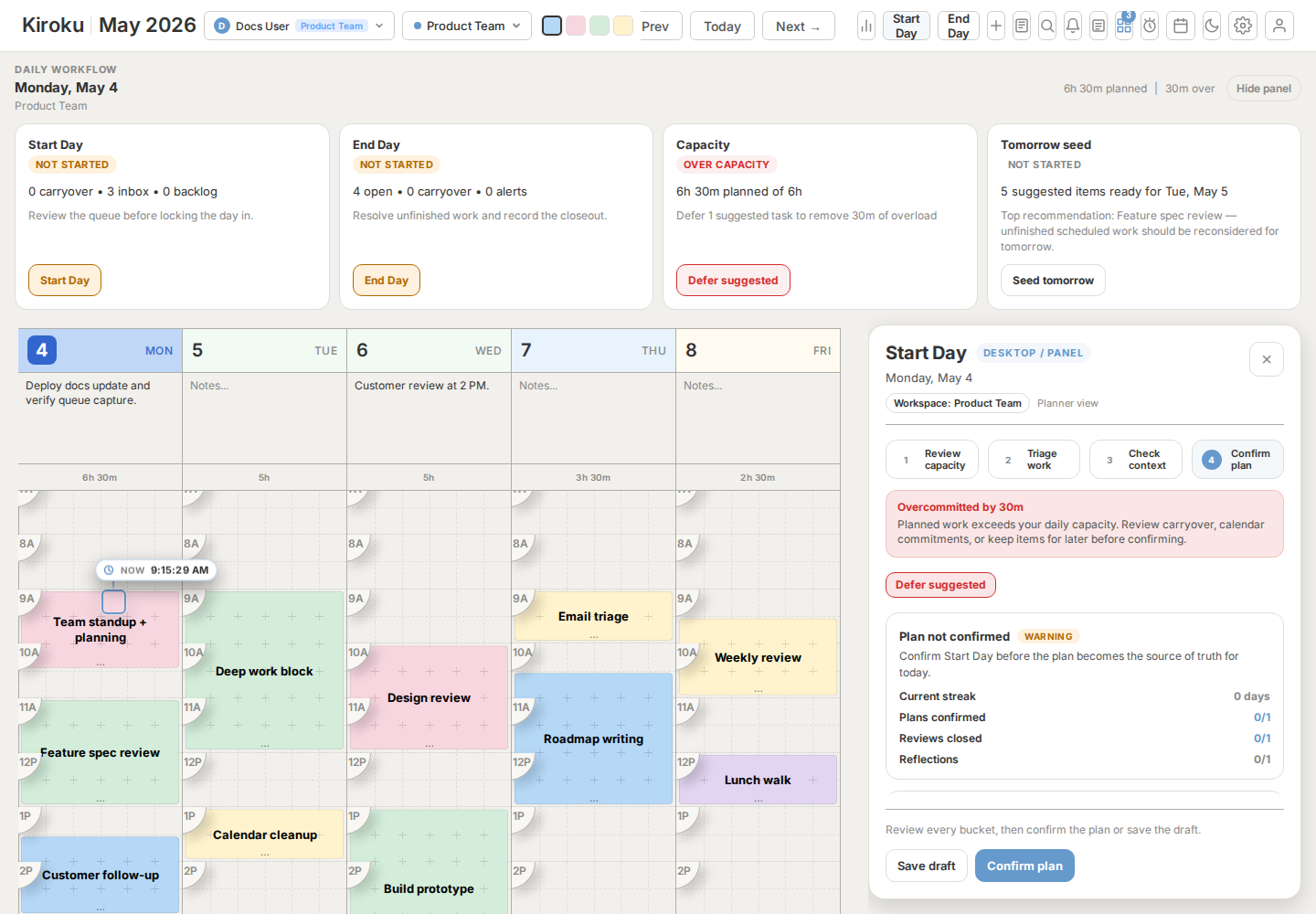
Daily Workflow turns planning into a repeatable operating loop.
Start Day
Use Start Day in the morning or before a planning block.
It helps you:
- Review carryover work.
- Triage new queue items.
- Check capacity.
- Place suggested work into open slots.
- Seed tomorrow when today is full.
- Confirm the day before you start executing.
End Day
Use End Day when wrapping up.
It helps you:
- Review completed and missed work.
- Carry unfinished tasks forward.
- Convert unresolved items back into queue work.
- Capture a short reflection.
- Track daily workflow habit history.
The daily workflow summary strip above the grid shows planned time, remaining capacity, carryover, queue counts, and suggested next actions.
Quick Capture
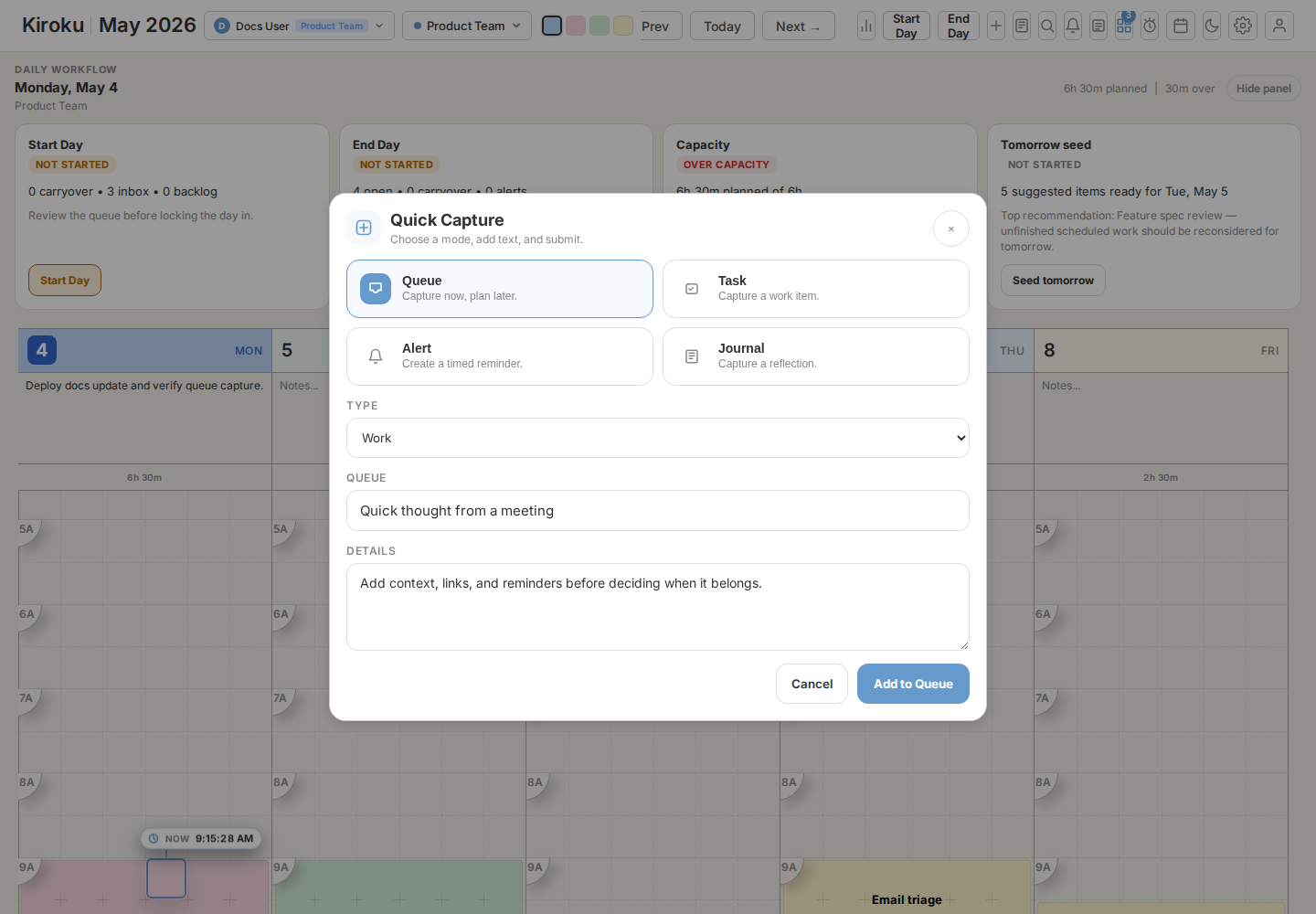
Quick Capture is for getting something into Kiroku before you lose it.
Capture modes include:
- Queue item.
- Scheduled task.
- Alert.
- Journal note.
- Voice capture where supported by the browser.
Use the details field for raw context. When a capture becomes a task, those details are preserved in task notes.
External Intake
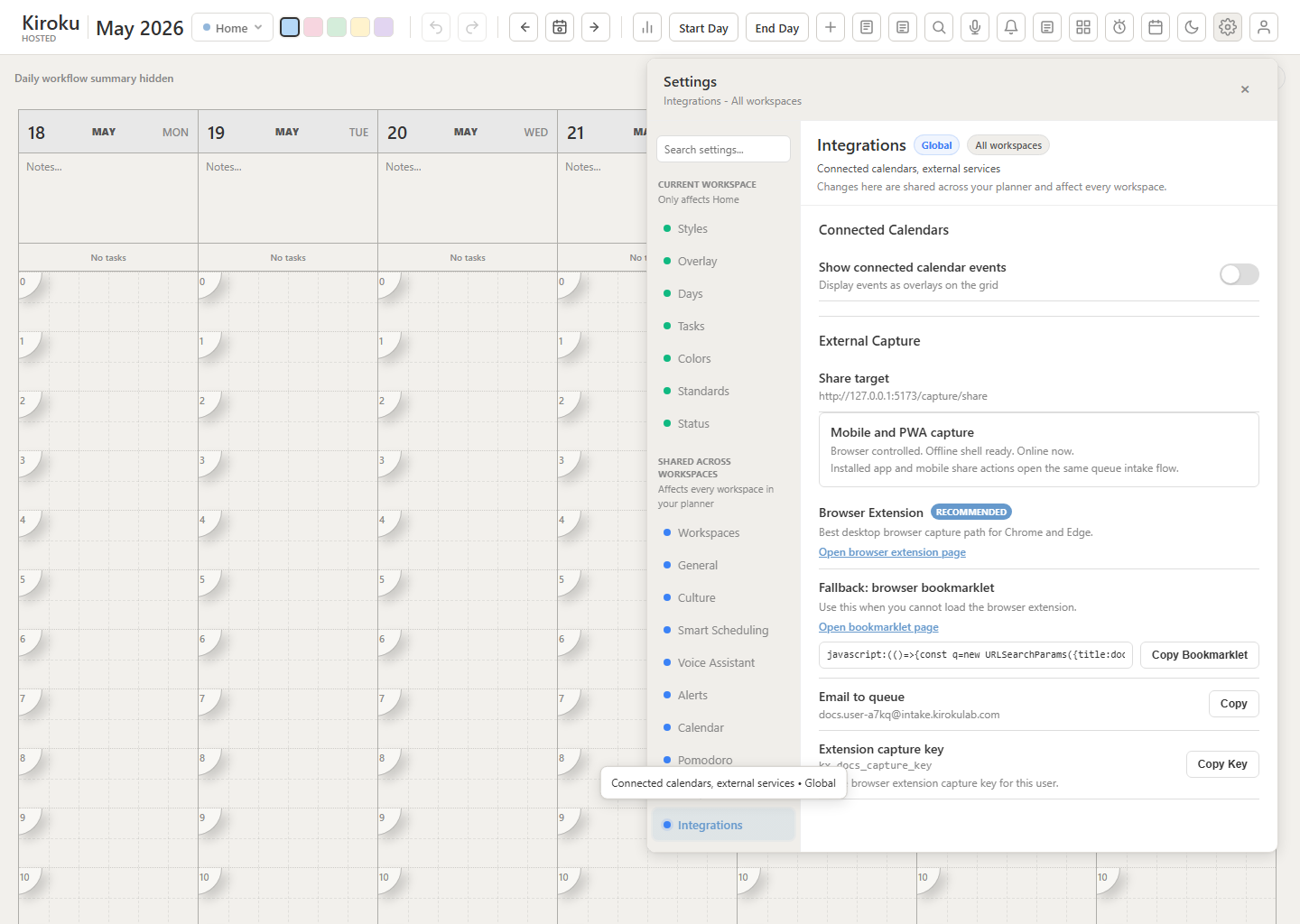
Kiroku supports several intake paths so users do not have to keep the planner open all day.
Inbound Capture Email Address
Every user should have a stable inbound capture email address. Forward an email to that address and Kiroku stores it as a queue item. The address is shown in Settings > Integrations and can be copied.
For hosted deployments using Postmark inbound, configure the inbound route for the capture endpoint. Captures enter the user's global queue first, then the user schedules them into the selected workspace during triage.
Postmark should call https://app.kirokulab.com/api/capture/postmark. Use Postmark Basic Auth with any username and a password that matches the configured Kiroku webhook secret.
Browser Extension
The Chrome/Edge extension captures:
- Current page title.
- Current page URL.
- Selected text.
- Optional screenshot.
The extension setup lives on the browser extension page. The only user-specific value the extension needs is the capture key shown in Settings > Integrations. Captures go to the global queue. After an accepted capture, the popup closes automatically; repeated deliveries with the same idempotency key are treated as already accepted and do not create duplicate queue items.
Bookmarklet Fallback
When the extension cannot be installed, use the bookmarklet. The bookmarklet page has the browser-specific setup steps; Settings > Integrations shows the generated bookmarklet value for the current environment.
Share Target
Share Target is the web/PWA-style intake path. When a browser or operating system supports sharing to installed web apps, Kiroku can receive shared text, links, and page context. It is another capture route into the same queue, not a separate storage area.
Command Palette
Open the command palette with Ctrl + K.
It accepts natural input such as:
| Input | Result |
|---|---|
Design review 2pm tomorrow for 45m #work | Scheduled task tomorrow at 2:00 PM. |
Pay renewal invoice | Queue item because no time was supplied. |
Call vendor 10am Friday #admin | Scheduled Friday task using the matching type. |
alert submit report 4pm | Alert block at 4:00 PM. |
Use the command palette when keyboard flow is faster than opening the queue or dragging on the grid.
Voice Assistant
Voice Assistant is an optional profile-gated toolbar control for hands-free task changes. In supported browsers, the microphone button starts local listening for "Hey Kiro". When the wake phrase is heard, the app sends recent microphone audio plus a small planner context payload to the hosted /api/ai/voice-command route.
Settings for silence detection, microphone sensitivity, audio cues, transcription fallback, local command history, and spoken answer voice live in the dedicated Settings > Voice Assistant tab. The toolbar shows a live microphone level while Kiroku is listening so users can tell whether quiet speech is being picked up. Profiles can remove the entire tab and toolbar control by disabling ai.voiceAssistant.enabled, while sub-flags can hide individual voice capabilities.
The API handles transcription and command parsing, then returns only command shapes the planner already understands. The client executes those commands locally, so unsupported or unsafe instructions are ignored instead of becoming arbitrary mutations. Read-only planner answers can be spoken with either the browser voice or the optional Natural AI voice engine. Natural AI voice uses OpenAI's higher-quality marin and cedar voices and does not silently fall back to browser speech if the hosted speech route fails.
Initial command coverage includes creating tasks, moving tasks, changing task times, adding notes, setting status, changing type, locking/unlocking, deleting a matching task, and duplicating a matching task across specific or upcoming visible days. Locked-task protections still apply.
Deployments need OPENAI_API_KEY or OPENAI_VOICE_API_KEY. The command, transcription, and natural speech models can be changed with OPENAI_VOICE_COMMAND_MODEL, OPENAI_VOICE_TRANSCRIPTION_MODEL, and OPENAI_VOICE_SPEECH_MODEL.
Task Details, Notes, Images, And Links
Task details are more than a label. A task can include:
- Notes.
- Source metadata.
- Status.
- Recurrence.
- Alert behavior.
- Assignment metadata in enterprise/team contexts.
- Images captured from browser extension screenshots or pasted/attached notes.
Links in notes remain clickable. Images can be opened in a full-window viewer for inspection. The task details panel can be resized, minimized, and maximized.
Calendar And Time Tracking
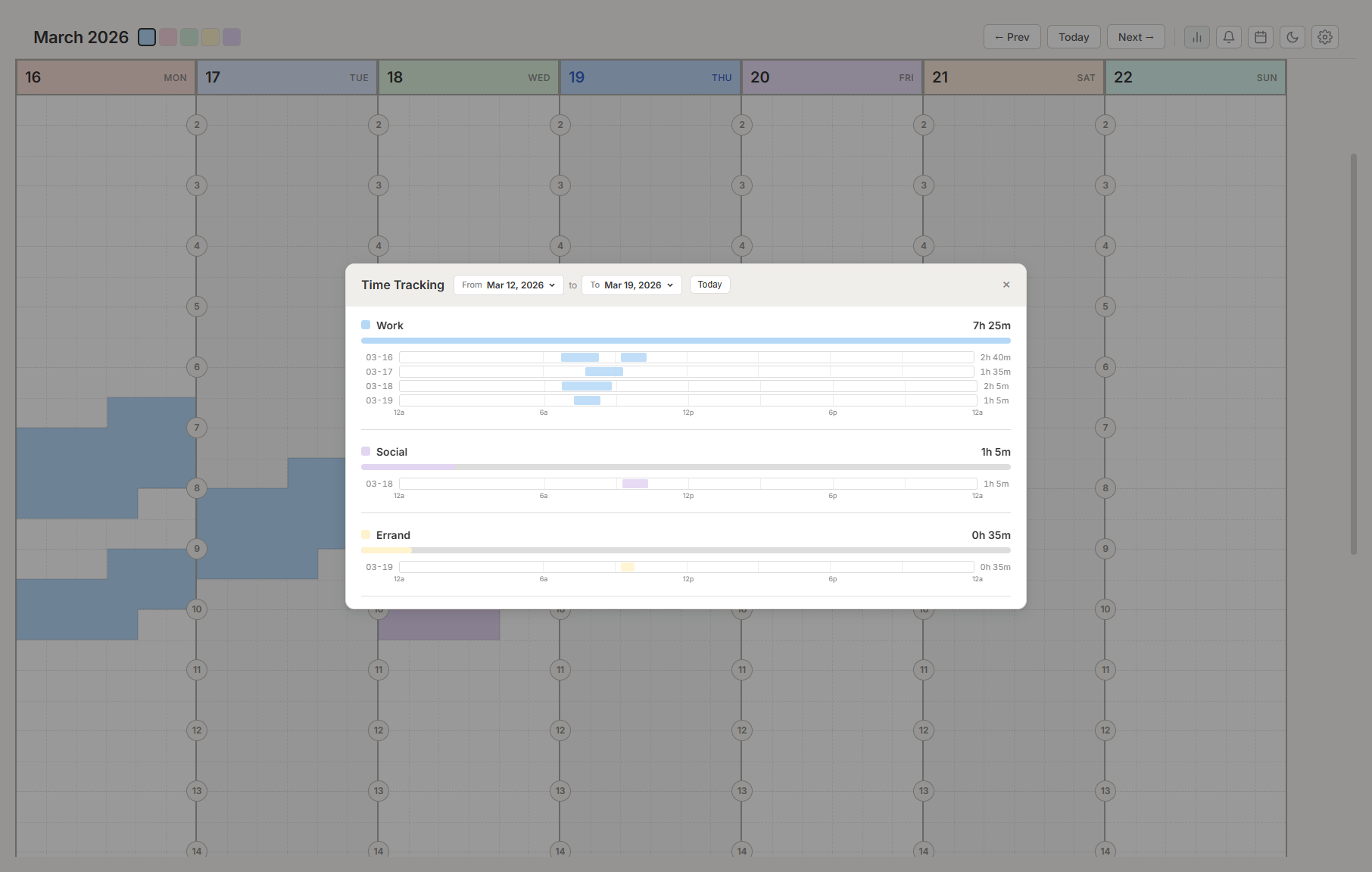
Use Time Tracking to understand where time went across a range. It summarizes totals by task type and shows daily timelines.
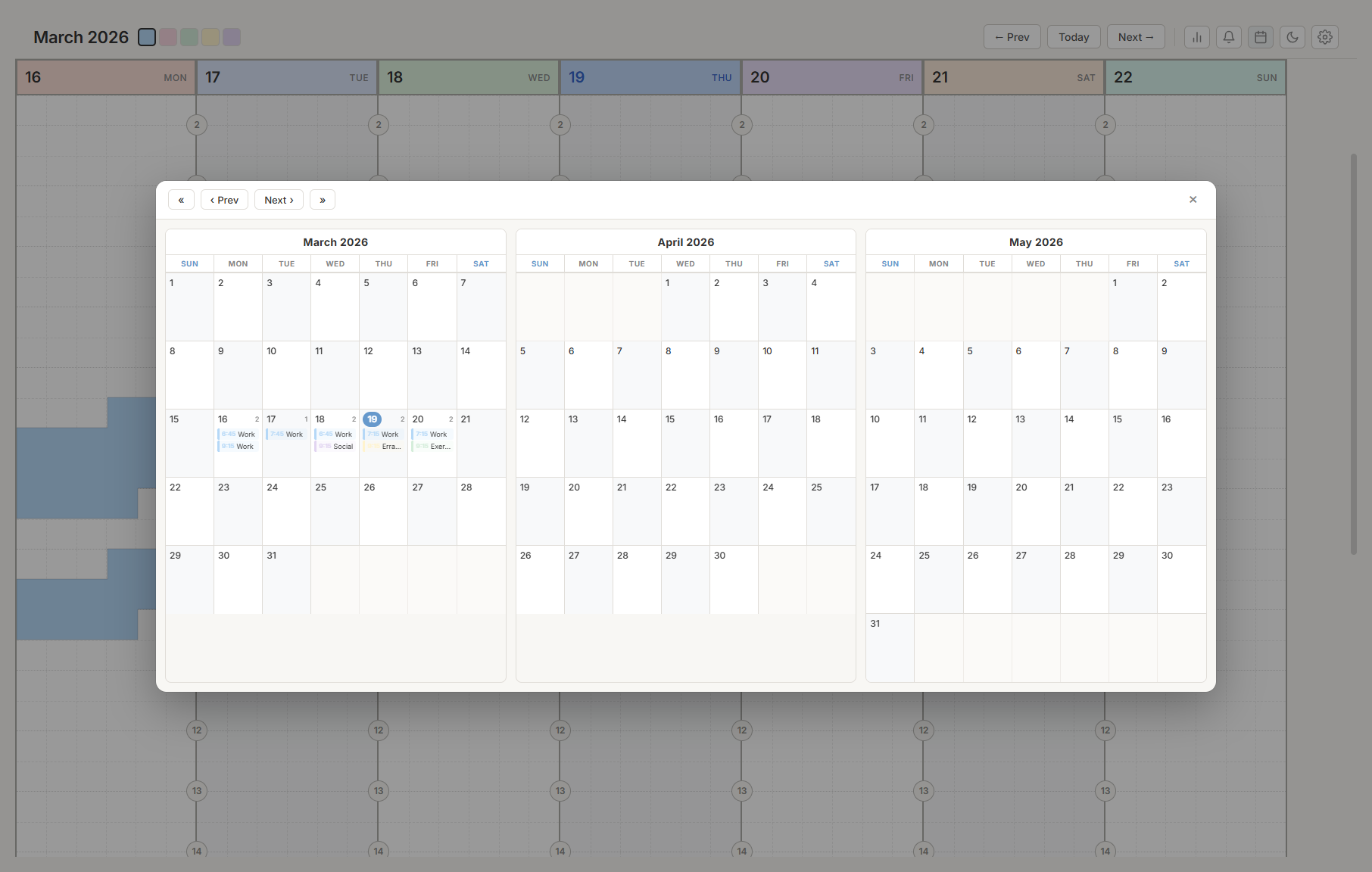
Use Calendar View to inspect a month-level view, jump to a date, and see task density without scrolling through the weekly grid.
Workspaces
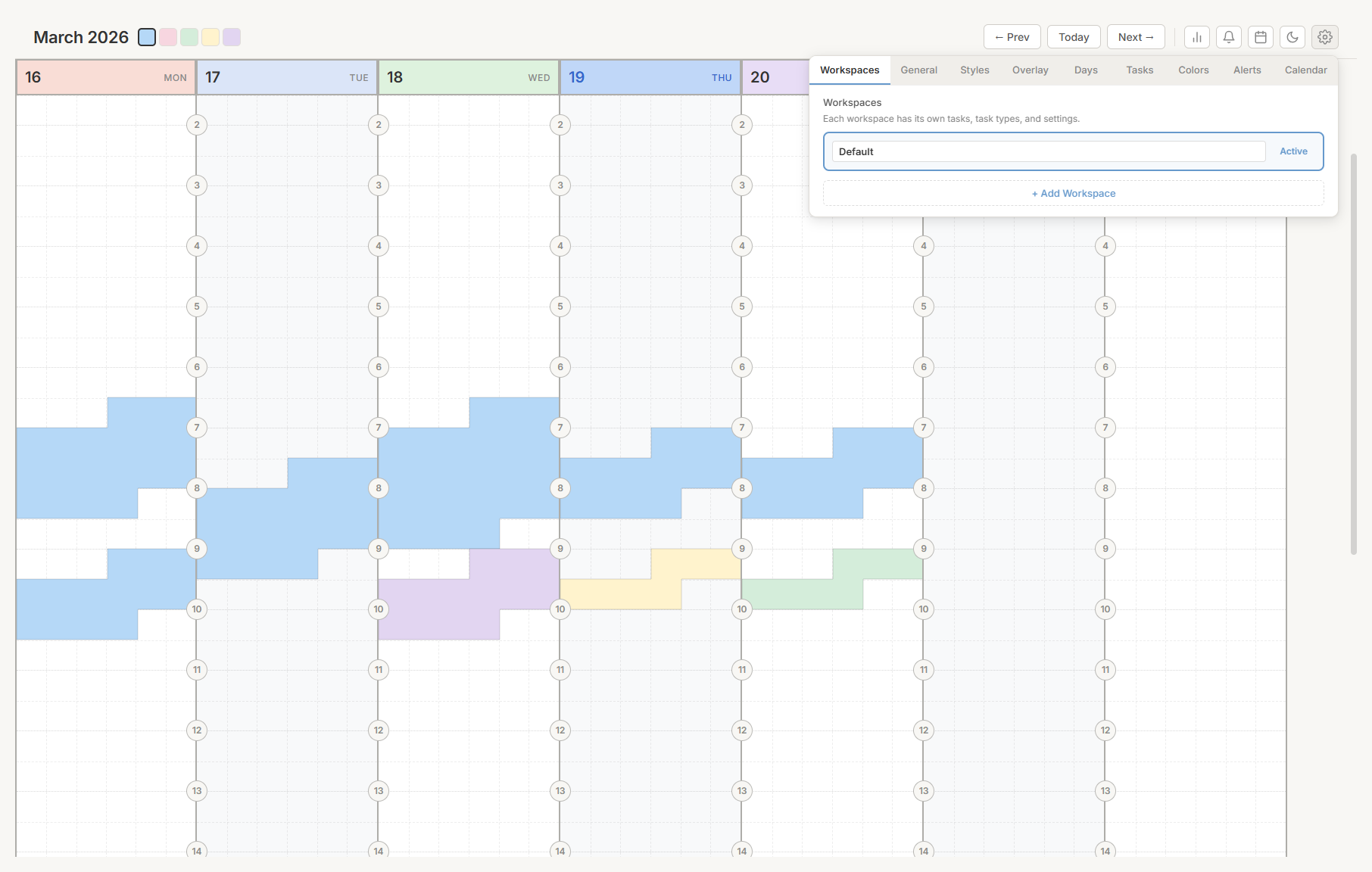
Workspaces keep different scheduled planning contexts separate. Each workspace can have its own:
- Tasks.
- Day notes.
- Task types.
- Styling.
- Visible days and hours.
- Templates.
Use workspaces for separate teams, clients, life areas, or testing environments. The queue is shared across workspaces until an item is scheduled.
Customization
Kiroku is heavily configurable without requiring code changes.
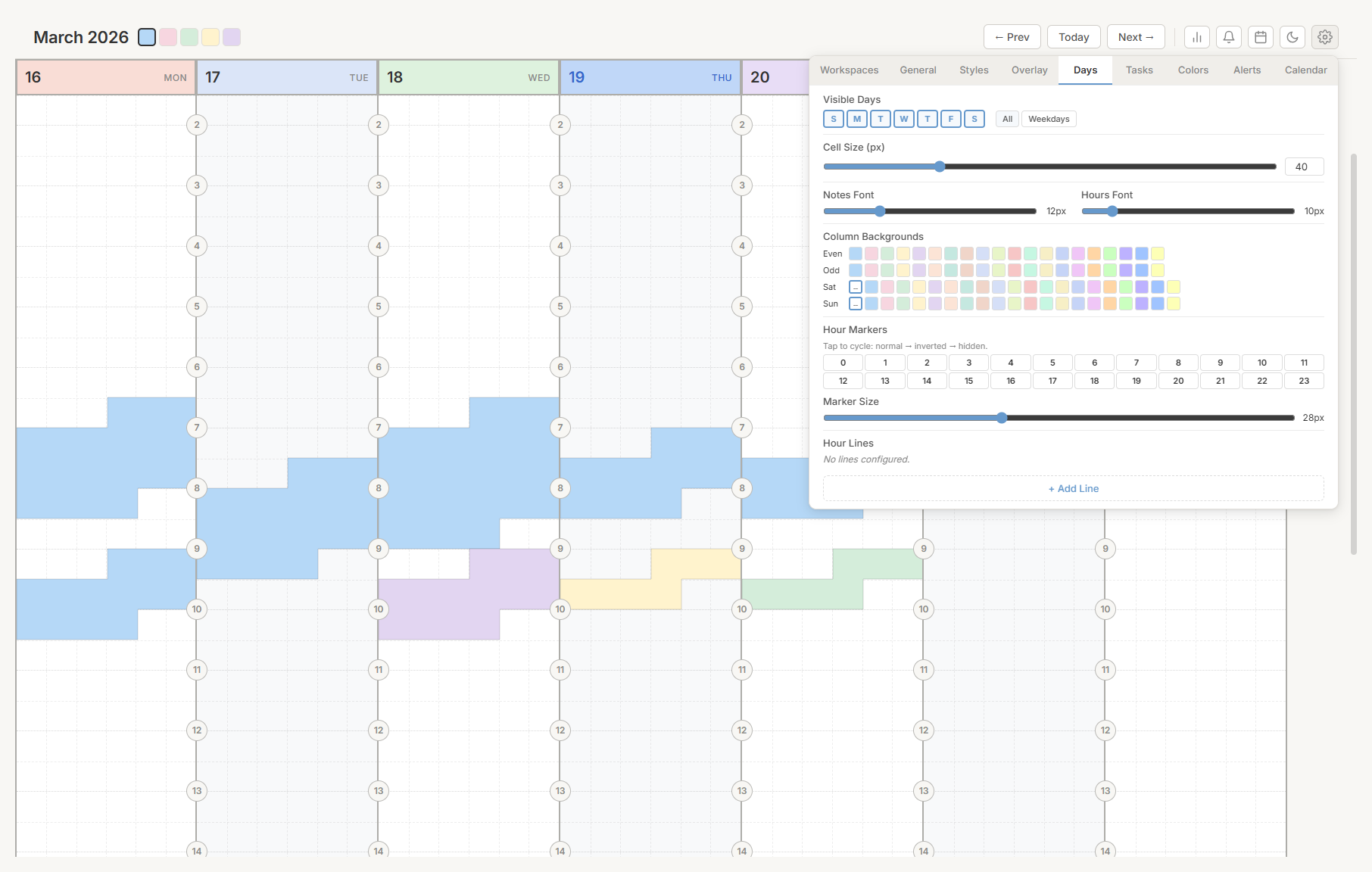
Key settings:
| Tab | Controls |
|---|---|
| General | Experience mode, recommended defaults, cloud sync, reset, account security, and client ID. |
| Imports | Full backups, queue export, task imports, and source-level profile controls. |
| Culture | Language and time zone. |
| Smart Scheduling | Queue slot hints, overload recovery hints, and lookahead range. |
| Days | Visible days, visible hours, hour markers, start hour, sticky layout. |
| Tasks | Task types and task colors. |
| Styles | Normal, highlighter, and office task rendering. |
| Overlay | Hover details, delay, position, and fields. |
| Colors | Planner color palette. |
| Alerts | Browser reminders and daily summaries. |
| Calendar | Holidays, custom calendars, and calendar integration. |
| Pomodoro | Focus timer durations and automation. |
| Templates | Saved day layouts. |
| Status | Status presets and colors. |
| Integrations | Email intake, capture key, browser extension link, bookmarklet link, and calendar connection. |
Recurring Tasks And Templates
Recurring tasks generate future instances from one master task. Supported patterns include daily, weekdays, weekly, biweekly, and monthly schedules.
Day templates let you save a common day layout and apply it later. This works well for meeting days, school schedules, clinical blocks, production days, and repeatable operational routines.
Templates preserve each saved task's time, type, text, status, lock state, estimates, actuals, deadlines, priority, and scheduling constraints. Applying a template recreates locked tasks as locked so fixed blocks keep their schedule, type, and status protected.
Import And Export Framework
Settings > Imports separates full backups from task imports.
- Kiroku backup exports a compressed
.tdbarchive and restores it as a destructive full replacement. - Queue CSV exports unscheduled queue items, excluding deleted queue tombstones.
- Task imports can append queue items from plain text, generic CSV, Todoist CSV, TickTick CSV, and Akiflow CSV without replacing planner data.
The framework is provider-driven so new task import sources can be added through a registry instead of wiring each source directly into the Imports tab. See Import/Export Provider Framework for the implementation plan and extension path.
Pomodoro And Focus
The Pomodoro widget runs focus/break cycles inside the planner. It supports:
- Focus duration.
- Short break.
- Long break.
- Sessions per cycle.
- Auto-start break.
- Auto-start focus.
- Sound.
- Browser notifications.
Use it when the plan is set and you need execution support.
Search, Journal, And Review
Kiroku includes planner-wide search across tasks, notes, journal entries, and day notes. The journal can be used for daily reflection, meeting notes, and linked context from calendar events.
Daily Summary gives a quick read-only view of the current day: planned work, task counts, type breakdowns, and day notes.
Daily Record gives a fuller day review by combining scheduled tasks, completed work, open work, alerts, captures, task notes, screenshots, day notes, and journal entries. It now includes visible-week history navigation, filters for task type/status/source/content, and carry-forward actions for missed work.
Its Personal Analytics, Review Actions, Trends, and History Search views review the configured visible week and recent weeks with planned-versus-actual time, completion rate, tracking rate, carry-forward work, unplanned captures, capture-to-plan lead time, recurring rollover patterns, busiest day, top task type, variance by type, and estimate feedback. Review Actions can bulk carry missed work, plan selected queued captures, move missed recurring instances, apply estimate suggestions to matching open, unlocked tasks, print a day or week, export JSON/CSV/Markdown, and save the weekly review as a Journal reflection. History Search retrieves older tasks, captures, notes, screenshots/media, and journal entries without manual week-by-week navigation.
Sync And Offline Behavior
By default, planner data is local to the browser. When signed in, Kiroku syncs planner state through the hosted service, including scheduled tasks, queue items, notes/images, journals, templates, task type opacity, lock/status state, recurrence, alerts, and planning fields such as estimates, actuals, deadlines, priority, work spans, and scheduling constraints.
External captures are queued server-side until the client picks them up. That matters for email and browser-extension capture: if the user does not open Kiroku for days, the hosted capture feed stores the items for the configured retention window. Admin capture settings control how long unpicked external capture items remain available.
When the client picks up external captures, it also imports attached browser screenshots and marks those capture events delivered so they do not keep reappearing as new sync work.
OneCode Sign-In
OneCode is the default sign-in method on the hosted login page: an account for privacy-conscious users that requires no email, name, or personal information — just a generated two-word code (like PRETTYBIRD) and a password. Google and email sign-in remain one click away below it.
The create flow shows the code first. A suggested code appears immediately with a refresh button beside it — cycle suggestions until one feels right, then choose a password and claim that exact code. Codes come from two curated lists of 4,000 short common English words (16 million combinations), screened against a reference dictionary and a profanity blocklist, with collision checks before a code is issued.
OneCode accounts are intentionally restricted:
- They receive the deployment's configured basic usage profile (set in the admin Profiles page), with cloud sync and most account-backed features off — planner data stays local to the browser.
- They are deleted automatically after 14 days without a sign-in.
- A lost password or code can never be recovered — there is no email on file.
- More than five failed logins locks the account for 1 hour, doubling on each repeat up to 24 hours.
The account panel offers a one-way upgrade to a full account that keeps the user's data, removes the OneCode login, and unlocks sync and the regular feature set.
Admin, Hosted, And Enterprise
The hosted/admin surface covers deployment and operational controls:
- User management.
- Profiles and feature flags.
- Capture retention.
- Support diagnostics for account, sync, and capture troubleshooting.
- Auth settings.
- Reports.
- Shared queue items.
- Workflow rules and runs.
- Workspace visibility policies.
Enterprise-only admin features are visible only in enterprise builds running in enterprise mode. Standard hosted builds should not show enterprise controls unless that mode is active.
Hosted images can self-update from GitHub and expose a local update status page showing current version, target version, update progress, and logs.
The admin Support page gives operators one place to search a user and inspect account state, profile/plan status, hosted sync snapshot metadata, device sync rows, active capture aliases, and recent capture events. It can export a sanitized diagnostic JSON file for support handoff without exposing raw capture metadata or browser extension capture keys.
Recommended First Test
To understand the app quickly:
- Add three queue items.
- Click Plan today on one.
- Click Plan this week on another.
- Open Start Day and review capacity.
- Open Settings > Smart Scheduling and turn smart scheduling off.
- Reopen the queue and confirm suggestions disappear.
- Turn smart scheduling back on.
- Open Settings > Integrations and copy the inbound capture email address and extension capture key.
That path touches the planner, queue, smart scheduling, daily workflow, and external intake without needing admin access.